Asking for Screen Recording Permission Without Losing the User
Asking for Screen Recording Permission Without Losing the User
A screen recorder on macOS needs Screen Recording permission. Getting it is a user-interface problem, not a technical one, and the technical constraints make the interface harder than it looks.
You get one prompt
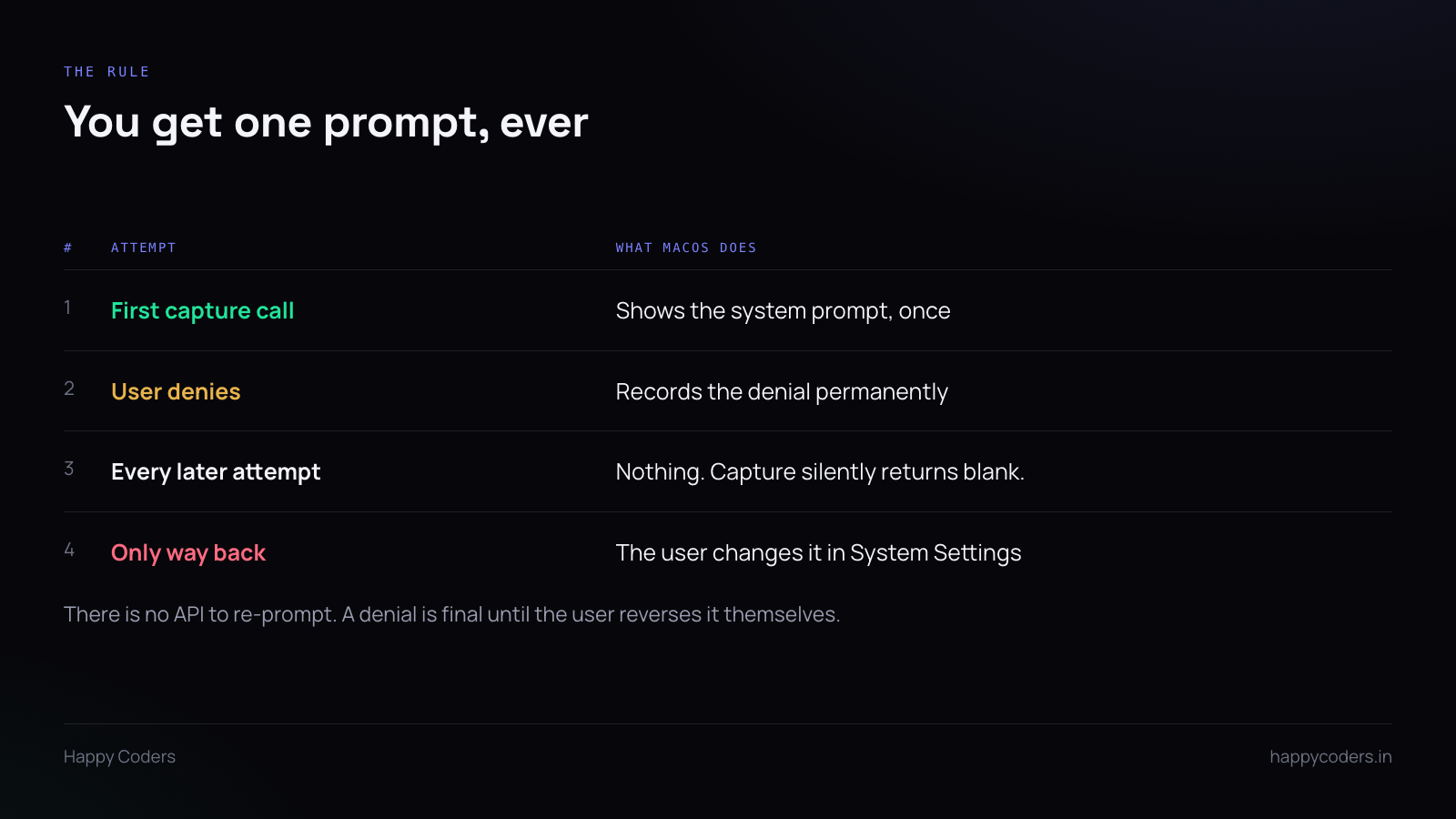
The first time your app genuinely attempts to capture, macOS shows a system dialog. The user allows or denies.
If they deny, that is recorded, and there is no API to ask again. Later capture attempts do not re-prompt — they succeed and return blank or black frames, which is a particularly unhelpful failure because nothing errors.
The only route back is the user going to System Settings, Privacy and Security, Screen and System Audio Recording, and switching your app on themselves.
So the prompt is one shot, and whatever your app shows before it decides the outcome.
The sequence
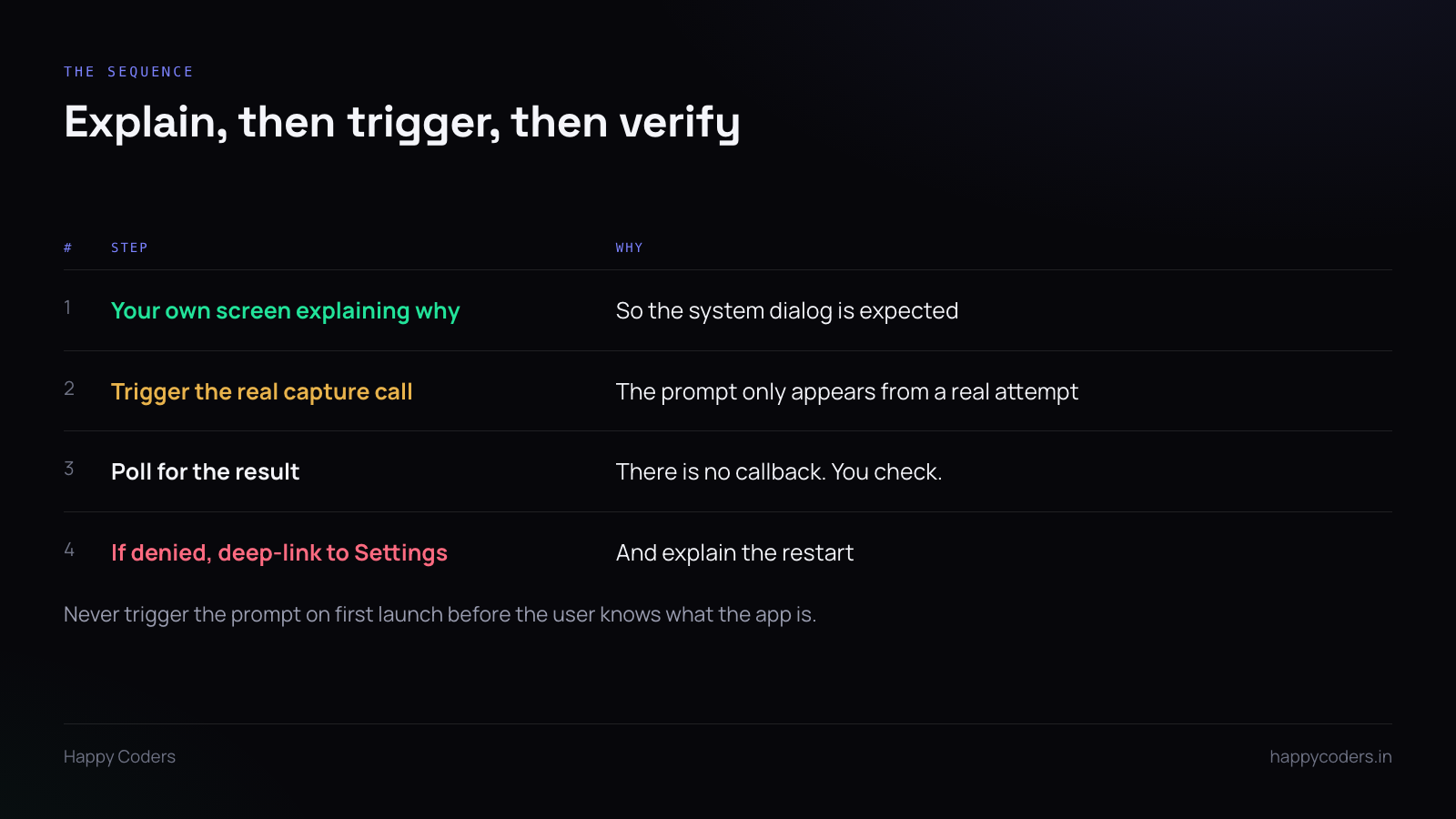
Explain first, in your own interface. One screen, before anything system-level appears: what the app needs, why, and what it will not do. Then a button the user presses to continue.
The purpose is that the system dialog arrives as the expected next step rather than as an interruption. A security prompt nobody set up is a prompt people refuse on instinct.
Do not trigger it at launch. The worst version of this is a permission dialog in the first three seconds, before the user knows what the app is. They have no reason to trust it yet and every reason to decline.
Trigger it when the user first tries to record. At that moment the request is obviously connected to what they just asked for.
The prompt only comes from a real attempt. There is no “request permission” call. You start the capture, and macOS intercepts it and shows the dialog. Your code has to be ready to have that attempt fail.
Poll for the result. There is no completion handler. Check whether capture is now working, on a short timer, and update your interface when it changes.
When they deny
This will happen. Design the screen now rather than later.
It needs three things: plain language that permission was not granted and recording cannot work without it, a button that deep-links to the exact Settings pane (x-apple.systempreferences:com.apple.preference.security?Privacy_ScreenCapture), and a warning that the app has to be restarted after the switch is flipped.
That last one matters. macOS has historically required a restart for the new permission to take effect, and a user who grants it, comes back, and finds it still not working concludes the app is broken. Tell them before they go.
Detecting the state without triggering anything
You want to show the right screen without accidentally burning the one prompt.
CGPreflightScreenCaptureAccess() returns whether you have permission, without prompting. Use it to decide what to show. Its companion CGRequestScreenCaptureAccess() does prompt, so it goes behind the user’s explicit action.
Check preflight on every launch, not once. Permission can be revoked between sessions, and an app that cached “granted” at install will fail silently months later.
Microphone is separate, and so is the camera
Screen Recording covers the screen. Microphone audio is its own permission with its own prompt, and a camera overlay is a third.
Do not request all three at once. Ask for screen when they record the screen, microphone when they first enable narration, camera when they first turn on the overlay. Three prompts at launch reads as an app that wants everything; three prompts spread across the features that need them reads as normal.
What not to say
Avoid “we need full access to your computer”. It is not true and it alarms people.
Say what is accurate: the app records what is on screen while recording is running, and nothing when it is not. If recordings stay on the user’s machine, say that plainly — it is the single most reassuring sentence you can write on that screen, and it costs nothing when it is true.
Test the denial path
Developers test the happy path, because they granted permission on day one and never saw the dialog again.
Reset it with tccutil reset ScreenCapture your.bundle.id and walk the whole flow as a new user — including denying, to see what your app does.
If the answer is “nothing visible, recordings are just black”, that is the bug worth fixing before launch.