Surviving a Display Change in the Middle of a Recording
Surviving a Display Change in the Middle of a Recording
A user recorded a forty-minute walkthrough for a client. Thirty-one minutes in, their laptop was knocked and the Thunderbolt cable to the external monitor came loose for about two seconds. The recording continued. The file was 2.1 GB. It contained nothing after minute thirty-one, and because our writer had never been told to stop, it contained no usable index either.
That is the worst bug we have shipped in HappyRec, and it is worth being precise about why: the failure was not that a display was unplugged. The failure was that we had never decided what should happen when one was.
Screen geometry on a Mac is not stable. Monitors are plugged and unplugged, resolutions change, scaling changes, a full-screen app creates a new Space, a lid closes, a projector arrives with a resolution nobody expected. A recorder that assumes the display it started with will still be there in an hour is making an assumption that fails routinely.
What actually happens under a running stream
ScreenCaptureKit is built around a content filter and a stream configuration. The filter names what to capture — a display, a window, an application. The configuration fixes the output width and height, the pixel format, the frame interval and the queue depth. Once startCapture has been called, the configuration is what the system delivers against.
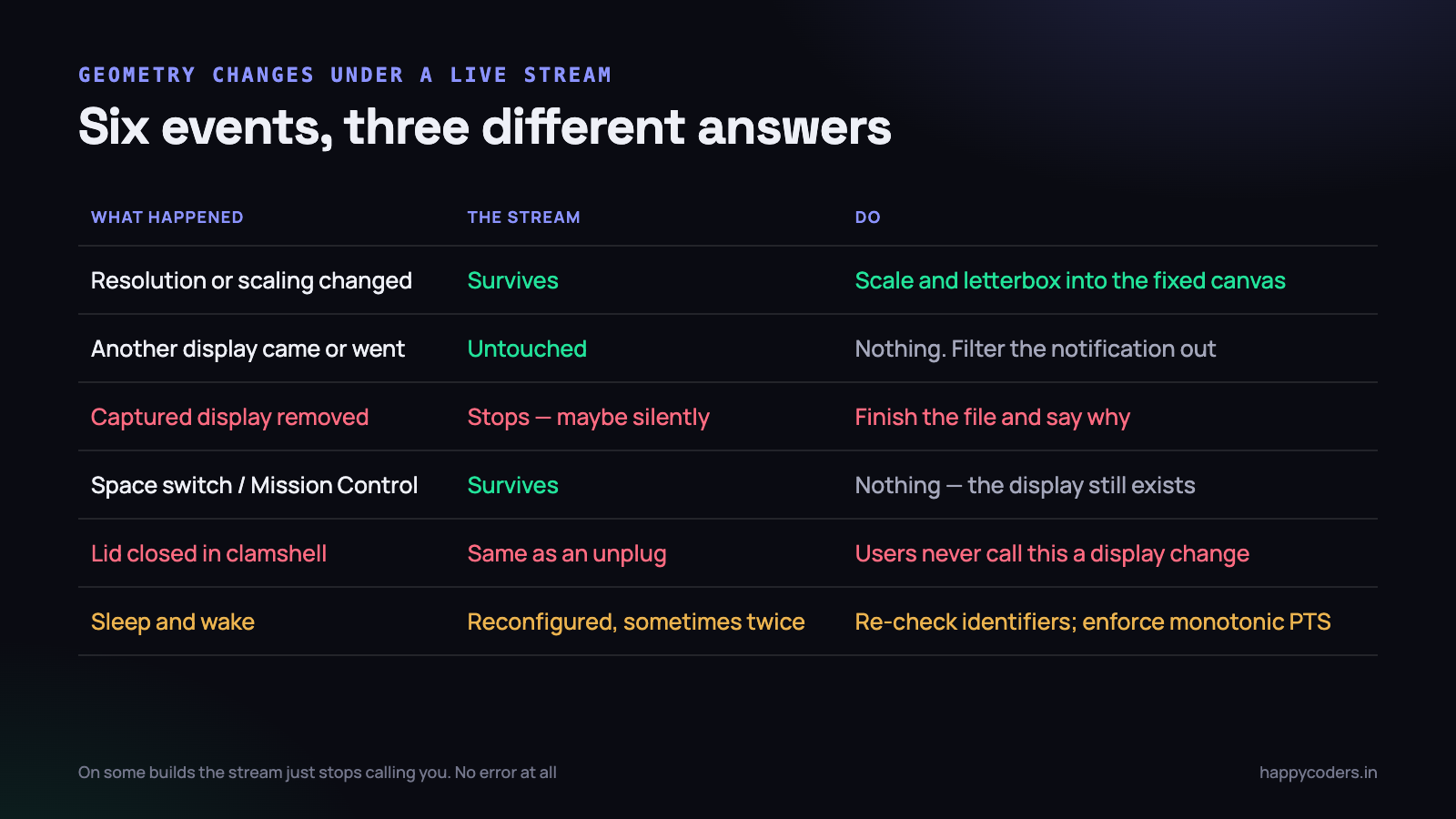
Different display events do very different things to that arrangement, and they are worth separating because the responses are not the same:
- A resolution or scaling change on the captured display. The stream survives. The source geometry has changed underneath a configuration that has not, so the system scales the content into your configured size — often with the aspect ratio now wrong.
- A second display arrives or leaves, but not the one you are capturing. Nothing happens to the stream. Windows may migrate between displays, which matters if you are capturing a window rather than a display.
- The captured display is disconnected. The
CGDirectDisplayIDyou are filtering on stops existing. The stream stops delivering. Whether you are told depends on the OS version, and that is the trap. - Spaces and Mission Control. A display capture keeps capturing that display, so a Space switch simply changes what is on screen. A window capture follows the window, including onto a different display.
- The lid closes with an external monitor attached. The built-in display goes away exactly like an unplugged monitor, and users do this without thinking of it as a display change at all.
- Sleep and wake. Displays are reconfigured on wake, sometimes twice, and the identifiers are not guaranteed to be what they were.
The one that cost us the 2.1 GB file was the third. We had implemented stream(_:didStopStreamWithError:), but on the OS build our user was running the stream did not report an error — it simply stopped calling us. Our capture callback was never invoked again, our writer was never finished, and every part of the app that could have noticed was waiting to be told.
Absence of frames is a signal. A recorder that only reacts to errors will sit happily through a silence that lasts until the user gives up.
A watchdog is not optional
The first thing we added was the least sophisticated: a timer that checks how long it has been since the last delivered frame. If the gap exceeds a threshold, something is wrong regardless of whether anybody reported it.
private var lastFrameAt = CFAbsoluteTimeGetCurrent()
private var watchdog: DispatchSourceTimer?

private func startWatchdog() {
    let t = DispatchSource.makeTimerSource(queue: controlQueue)
    t.schedule(deadline: .now() + 2, repeating: 2)
    t.setEventHandler { [weak self] in
        guard let self else { return }
        let gap = CFAbsoluteTimeGetCurrent() - self.lastFrameAt
        // 3s of nothing is not "an idle screen" - idle frames
        // still arrive with .idle status and refresh lastFrameAt
        if gap > 3 { self.handleStreamStalled(after: gap) }
    }
    t.resume()
    watchdog = t
}
The comment matters. A static screen does not stop producing callbacks — ScreenCaptureKit still delivers frames marked .idle when nothing has changed, and those should update the timestamp. Silence means the stream is gone, not that the user stopped moving the mouse. Getting this distinction wrong produces a recorder that stops itself whenever somebody reads a document for four seconds.
Being told properly: display reconfiguration callbacks
The watchdog catches everything but tells you nothing about why. For that there are two sources, and they answer different questions.
NSApplication.didChangeScreenParametersNotification is the high-level one. It fires after the window server has settled on a new arrangement, which makes it good for updating a picker and useless for reacting quickly, because it arrives once the change is already done.
CGDisplayRegisterReconfigurationCallback is the lower-level one, and it is the one worth wiring into a recorder. It fires before and after each change, and the flags say what kind of change it is.
CGDisplayRegisterReconfigurationCallback({ displayID, flags, ctx in
    guard let ctx else { return }
    let owner = Unmanaged<CaptureSession>
        .fromOpaque(ctx).takeUnretainedValue()

    // "beginConfiguration" arrives first; act on the settled state
    if flags.contains(.beginConfigurationFlag) { return }

    if flags.contains(.removedFlag)
        || flags.contains(.disabledFlag) {
        owner.displayWentAway(displayID)
    } else if flags.contains(.setModeFlag)
           || flags.contains(.desktopShapeChangedFlag) {
        owner.displayGeometryChanged(displayID)
    }
}, Unmanaged.passUnretained(self).toOpaque())
Two behaviours we did not expect. The callback fires for every attached display on some changes, not only the one that changed, so filter on the display you are actually recording. And .beginConfigurationFlag arrives before the new state exists — querying geometry there gives you the old values, which produced a memorably confusing afternoon.
Why the output size can never change
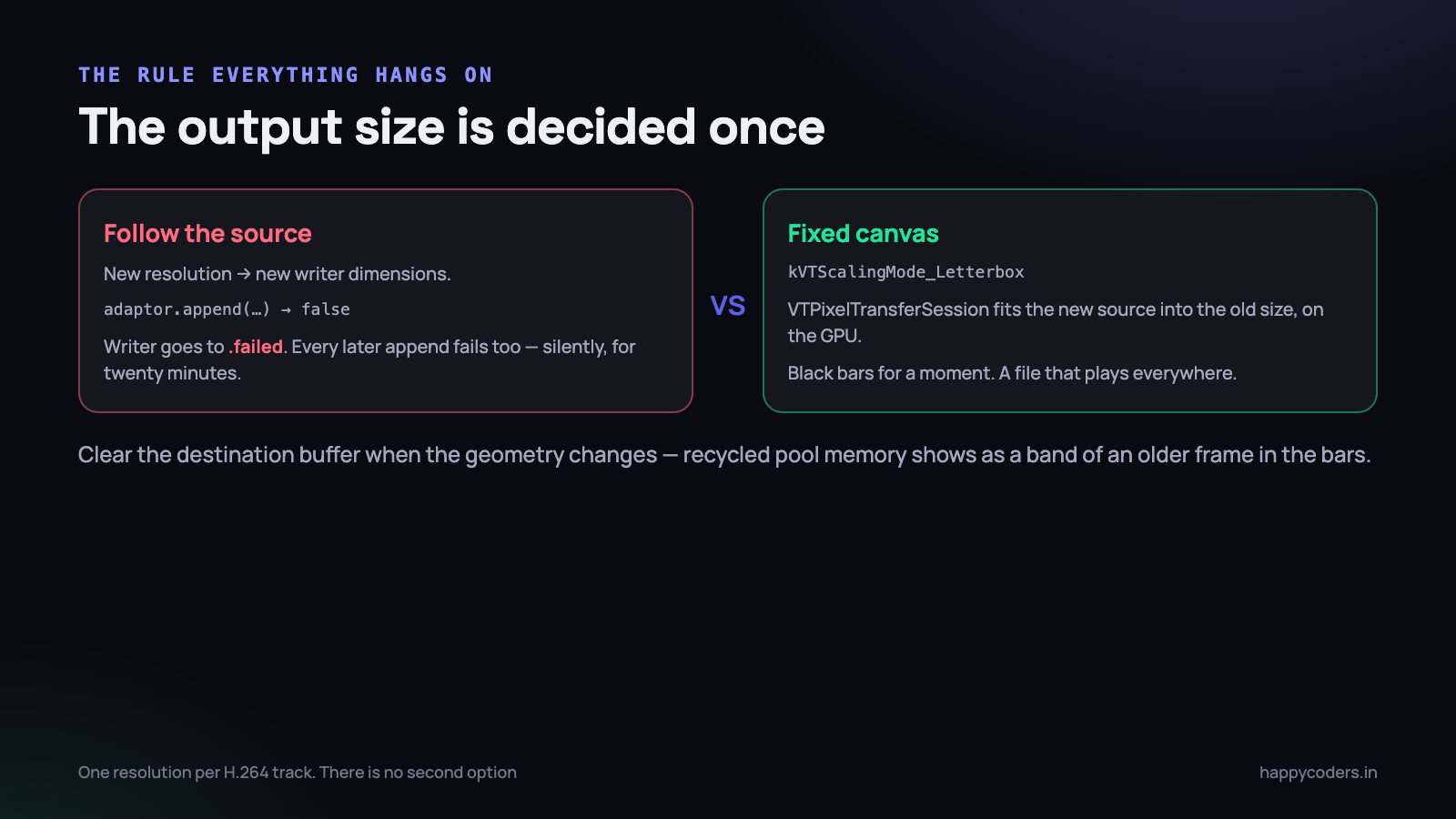
The instinct, once you detect a resolution change, is to follow it: the source is now 2560×1440, so write 2560×1440. You cannot, and this is the structural constraint the whole design hangs on.
An AVAssetWriterInput is configured with output settings that include width and height, and those settings are fixed for the life of the input. A video track in an MP4 has one set of dimensions. The format technically permits multiple sample descriptions within a track, but no player, editor or upload pipeline anybody actually uses handles a resolution change mid-track sensibly. In practice the file is broken.
What happens if you append a pixel buffer whose dimensions do not match is worse than an error. The writer’s status goes to .failed, every subsequent append returns false, and unless you are checking that return value you carry on for another twenty minutes producing nothing at all. We were not checking it. That is the other half of the 2.1 GB story.
guard input.isReadyForMoreMediaData else {
    stats.droppedByUs(); return
}
if !adaptor.append(pixelBuffer, withPresentationTime: pts) {
    // do NOT ignore this. It is how a recording dies silently.
    logger.error("append failed: (writer.error?.localizedDescription ?? "-")")
    failRecording(reason: .writerRejectedFrame)
    return
}
Check the return value of every append. A recorder that ignores it will always, eventually, produce a large file containing thirty seconds of video.
Scale and letterbox instead of crashing
So the output size is decided once, at the start, and every frame must be made to fit it. When the source geometry changes, the incoming buffer is a different shape and you scale it into the fixed canvas, preserving aspect ratio and filling the remainder with black.
Doing this on the CPU at 4K is not viable — it is hundreds of megabytes a second of work per frame. VideoToolbox has a pixel transfer session that does exactly this job on the GPU, and it has a scaling mode that letterboxes for you.
var session: VTPixelTransferSession?
VTPixelTransferSessionCreate(allocator: nil,
                             pixelTransferSessionOut: &session)

VTSessionSetProperty(session!,
    key: kVTPixelTransferPropertyKey_ScalingMode,
    value: kVTScalingMode_Letterbox)

VTSessionSetProperty(session!,
    key: kVTPixelTransferPropertyKey_DownsamplingMode,
    value: kVTDownsamplingMode_Average)

// dst comes from a pool created at the FIXED output size
VTPixelTransferSessionTransferImage(session!,
                                    from: src, to: dst)
A detail that is easy to miss: the destination buffer must be cleared, or the black bars are whatever was in that memory previously. Because the destination comes from a recycled pool, that is usually a slice of an earlier frame, and you get a thin band of stale picture along the edge of the video that looks exactly like a decoder bug. Clear the destination once when the geometry changes, not on every frame.
With this in place, a resolution change mid-recording produces a moment where the content becomes letterboxed and then, if the user changes back, fills the frame again. It is visible and slightly ugly. It is also a recording that finishes, plays everywhere and can be sent to a client, which is the entire point.
Choosing the output size in the first place
Since the size is permanent, it is worth choosing deliberately rather than taking whatever the display happens to report at launch.
- Round to even numbers. H.264 with 4:2:0 chroma needs even dimensions. An odd height from an unusual scaled resolution will be rejected or silently adjusted.
- Cap at the encoder level you intend to produce. Recording a 6K display natively commits you to a file most machines cannot decode.
- Prefer the logical resolution over the backing resolution for screen content. It is a quarter of the pixels and the text is no less readable.
- Store the decision with the session so that every code path — the scaler, the pool, the writer, the preview — reads one value. We had the output size computed in three places, and two of them disagreed after a display change.
When the display is simply gone
Scaling handles a geometry change. It cannot handle a display that no longer exists, and pretending otherwise is how you end up writing frames of black for twenty-nine minutes.
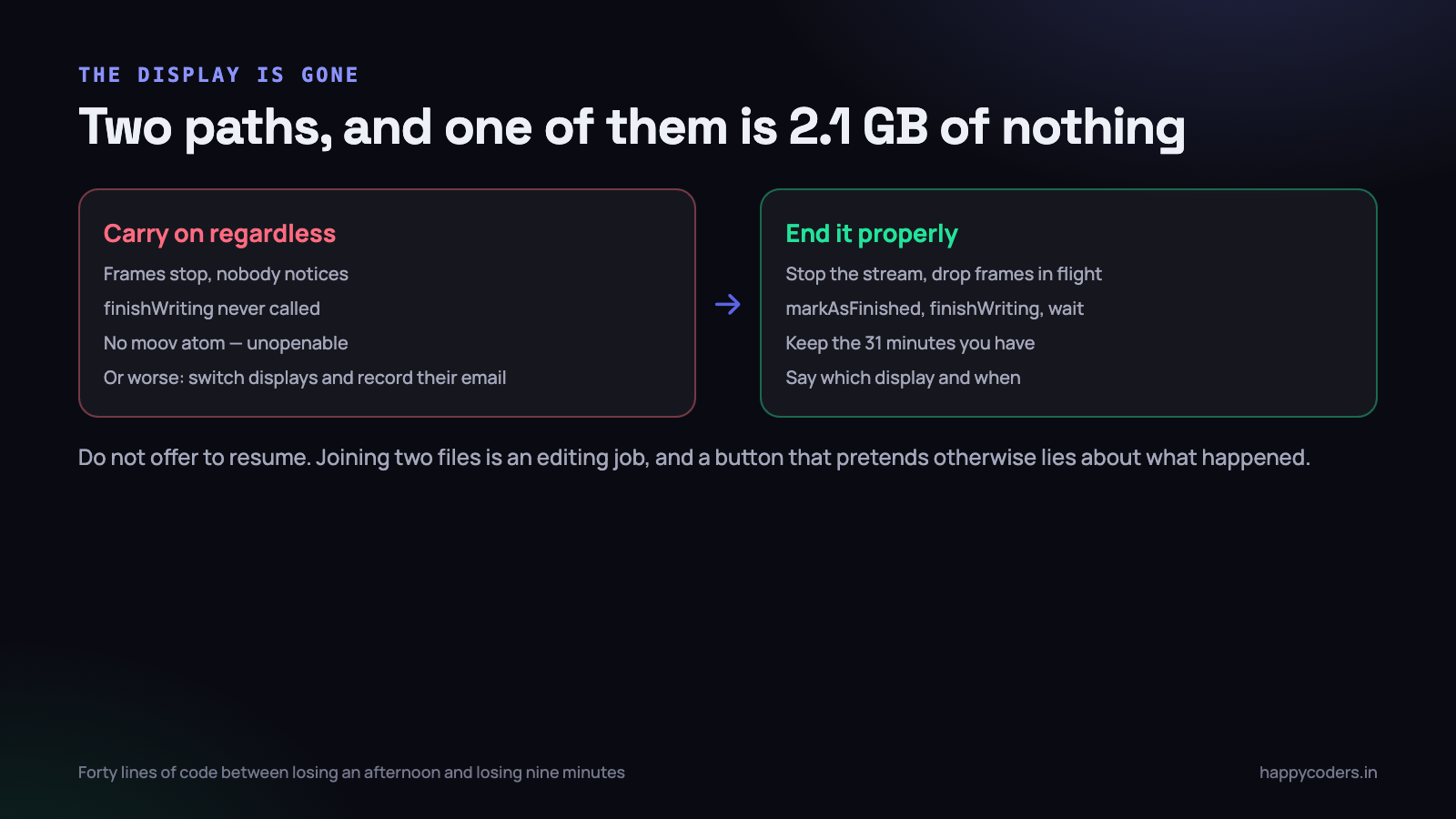
If the display being captured is removed, there is no honest way to continue. The user was recording a specific screen; that screen is not there. Silently switching to another display is worse than stopping, because the recording now contains something the user did not intend anybody to see — which, on a machine where the other display has their email on it, is a genuine privacy failure rather than an inconvenience.
So the recording ends, and the only thing that matters is that it ends properly:
- Stop the stream and stop accepting frames immediately. Anything still in flight is discarded rather than appended.
- Mark the inputs finished and call
finishWriting, then wait for the completion handler. This is what writes the index and makes the file playable. - Keep the file and name it clearly. Thirty-one minutes of a forty-minute walkthrough is worth a great deal. A deleted file is worth nothing.
- Tell the user what happened, in their words. “The display being recorded was disconnected. The recording was saved — 31 minutes.” Not a stream error code.
- Do not offer to resume. A second file appended to the first is a video editing task, and pretending it is a button lies about what happened.
The difference between our original behaviour and this is about forty lines of code. The difference in outcome is between a user who lost an afternoon and a user who lost nine minutes.
Window capture has its own version of this
If the filter names a window rather than a display, the geometry problem changes shape. The window follows the user — to another display, to another Space, into full screen — and the stream follows it, which is usually what you want.
But windows get resized, and a window that is resized mid-recording changes the source dimensions just as a display mode change does. The same fixed-canvas rule applies, and the letterboxing is far more visible because a window can change size by a lot.
Worse, windows get closed. A closed window is the window-capture equivalent of an unplugged monitor, and it is much more likely: users close the thing they were demonstrating because they have finished demonstrating it. Handle it identically — finish the file, keep it, say why it stopped.
One more, specific to Spaces: capturing a window that the user then sends to a different Space works, but if the window is minimised it stops producing frames without any error at all. The watchdog catches it; nothing else does.
Timestamps across the gap
There is a case between “carry on” and “stop”, and it is the common one: the cable is loose for two seconds and then the display comes back. The stream resumes. Frames start arriving again. What should the file contain for those two seconds?
The answer is nothing, and that is fine. If every frame carries the presentation timestamp the capture system gave it, a two-second hole in the video track is simply the last frame being held on screen for two seconds. Playback speed stays correct, the total duration stays correct, and the audio — which never stopped, because the microphone was not unplugged — stays aligned with the picture on either side.
The failure mode is a recorder that counts frames instead of trusting timestamps. Stamp your frames at a fixed interval from zero and those two seconds simply vanish: the video track becomes two seconds shorter than the audio track, and every subsequent word is spoken two seconds after the lips move. This is the single most common cause of “the audio drifts” reports in screen recorders, and it is never an audio bug.
One thing you do have to enforce is monotonicity. On wake from sleep, and occasionally after a reconfiguration, we have seen a frame arrive with a timestamp behind the one before it. AVAssetWriter rejects a non-increasing presentation time and moves to .failed, which — see above — ends the recording silently if you are not reading the return value. Drop any frame whose timestamp is not strictly greater than the last one you appended. It costs one comparison and it has saved two recordings that we know of.
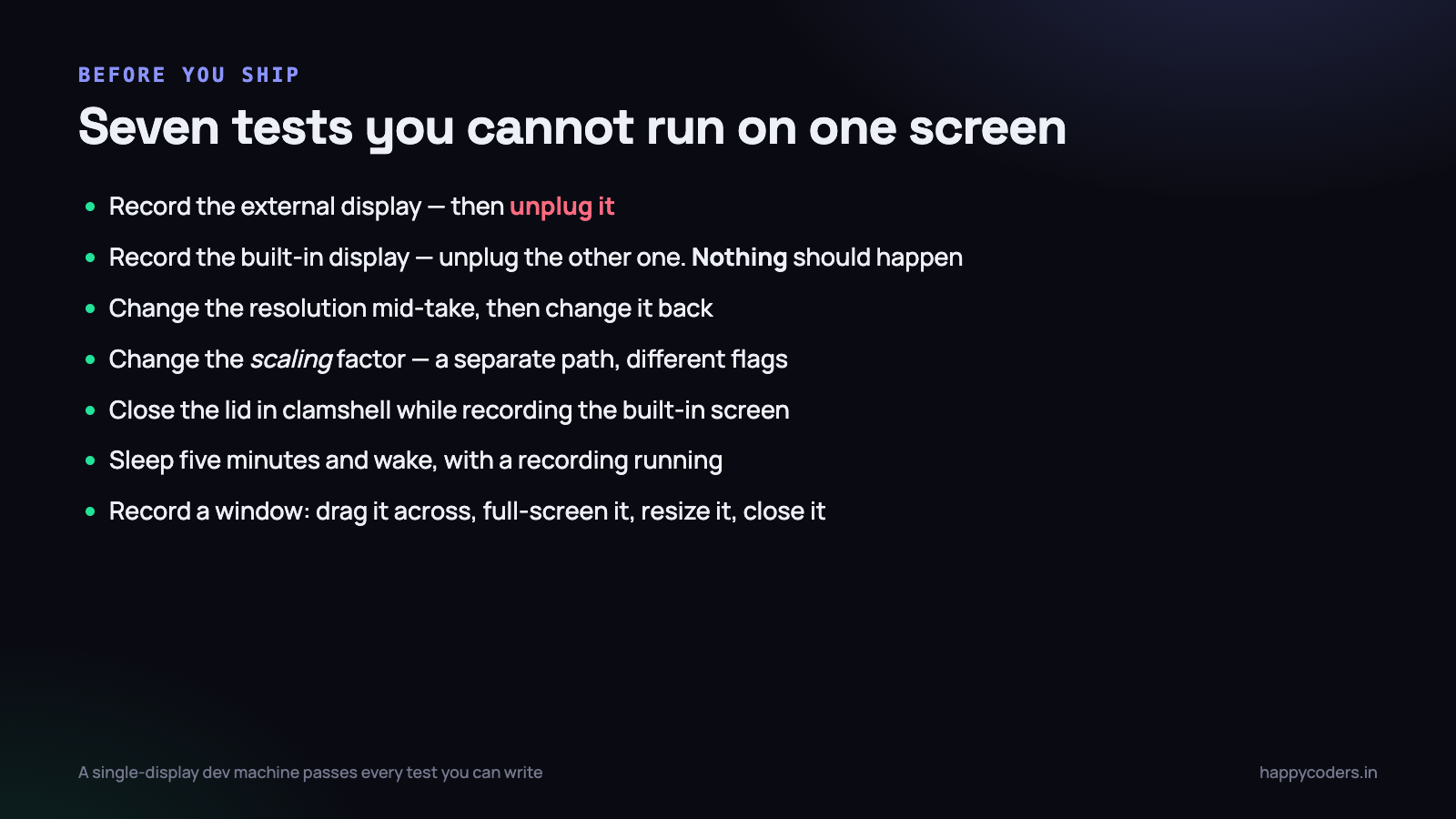
What to test on a two-monitor Mac before shipping
None of this is findable without hardware. A single-display development machine will pass every test you can write. We keep one Mac with a second monitor purely for this list, and it runs before every release.
- Start recording the external display, then unplug it. The file must be playable and the reason must be on screen within a couple of seconds.
- Start recording the built-in display, then unplug the external one. Nothing should happen. A recorder that stops here is over-reacting to a notification it should have filtered.
- Change the resolution of the display being recorded, mid-take. Then change it back. Both transitions in one file.
- Change the scaling factor rather than the resolution. It is a separate code path and it fires different flags.
- Close the lid in clamshell mode while recording the built-in display. Users do this constantly and never think of it as unplugging anything.
- Sleep the Mac for five minutes and wake it, with a recording running. Check the timestamps either side of the gap as well as the file opening.
- Record a window, then drag it to the other monitor, full-screen it, resize it, and finally close it.
Each one of those has caught a real defect for us at least once. The fifth found a case where we stopped the recording correctly and then crashed in the completion handler, which is a special kind of insult.
Two of these can be automated, which is worth doing because manual lists get skipped under deadline. displayplacer and the private display configuration APIs can change a resolution from a script, so the third and fourth tests can run unattended against a build and assert that the output file opens and reports the expected duration. Physical disconnection cannot be automated on real hardware, and we have never found a simulation of it that reproduced the real behaviour faithfully enough to trust.
What the log should contain
Display problems are reported by users hours after the fact, in a sentence like “it stopped recording”. Without a record of the geometry, that sentence is unanswerable, and we spent weeks not being able to answer it.
Four lines, written once each, changed the support conversation completely:
- At session start, every attached display with its identifier, resolution, scale factor and which one is being captured.
- On every reconfiguration callback, the display identifier and the decoded flags, even when you have decided to ignore it. The ones you ignore are the ones you will later want to see.
- On every geometry change applied, the old source size, the new source size, and the fixed output size the frames are being fitted into.
- On stop, the reason as an enumerated value rather than a message. “User pressed stop”, “display removed”, “writer failed” and “disk full” are four completely different conversations.
Since we added those, the report that used to read “it stopped recording” arrives with a log showing a display removal at 31:04 and a clean finish at 31:06, and there is nothing left to investigate. Roughly half of the display-related reports we get now turn out to be a docking station or a cable rather than our software — which we could previously only suspect, and can now demonstrate.
What to do on Monday morning
If you are writing anything that captures a screen for more than a few seconds, three changes are worth making before anything else, in this order.
- Check the return value of every writer append and treat
falseas the end of the recording. This is twenty minutes of work and it is the difference between a short file and a broken one. - Add a frame watchdog. Two seconds of a repeating timer, one timestamp, one threshold. It catches every stall regardless of whether the system bothers to tell you about it.
- Fix the output size at session start and make every other component read it from one place.
Then borrow the hardware. Find a colleague with a second monitor, work through the seven tests above, and write down what your software does in each case. Whatever is on that list is what your users are already experiencing — the only question is whether you know about it yet.