Keeping a Camera Bubble on Top of Every Other Window
Keeping a Camera Bubble on Top of Every Other Window
A camera bubble is a small circular window showing the presenter’s face, floating over whatever they are demonstrating. It has to stay on top of every other window, follow the user between desktops, never appear in the recording of itself, and never steal focus from the thing being demonstrated.
Each of those is one line of configuration, and getting any of them wrong produces a bug that only shows up in somebody else’s recording.
Window level, not z-order
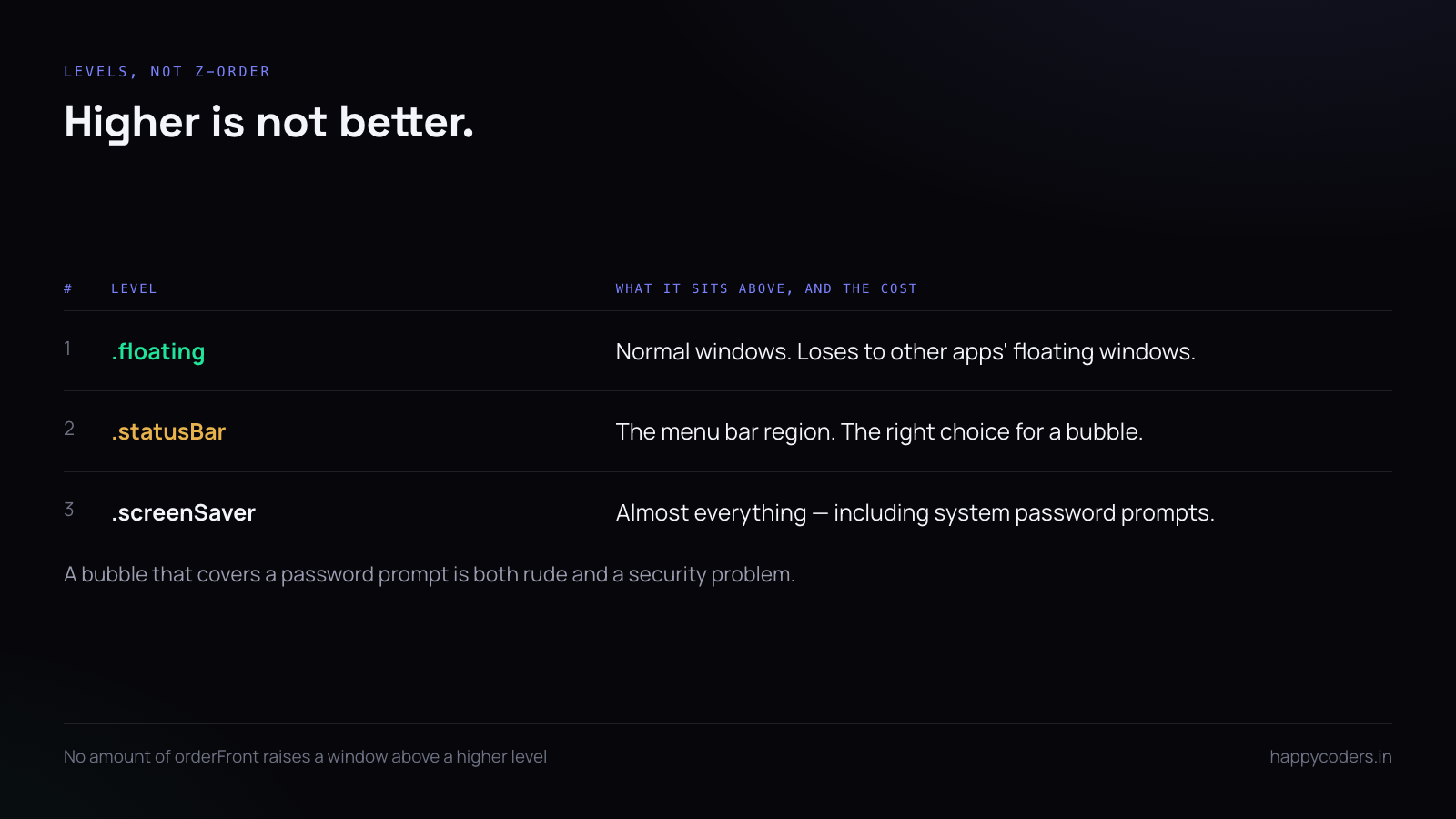
macOS does not have a single stacking order; it has levels, and the window manager keeps them separate. A normal window cannot be raised above a floating one by any amount of calling orderFront.
let panel = NSPanel(
    contentRect: rect,
    styleMask: [.borderless, .nonactivatingPanel],
    backing: .buffered,
    defer: false
)
panel.level = .statusBar          // above normal and floating windows
panel.isOpaque = false
panel.backgroundColor = .clear
panel.hasShadow = false
The useful levels, in order: .floating sits above normal windows and below other apps’ floating windows; .statusBar is above the menu bar region; .screenSaver is above almost everything and is the wrong choice because it also covers system alerts.
.statusBar is the right level for a camera bubble. Higher than that and you will cover a password prompt, which is both rude and a security problem.
Staying visible across spaces and full-screen apps
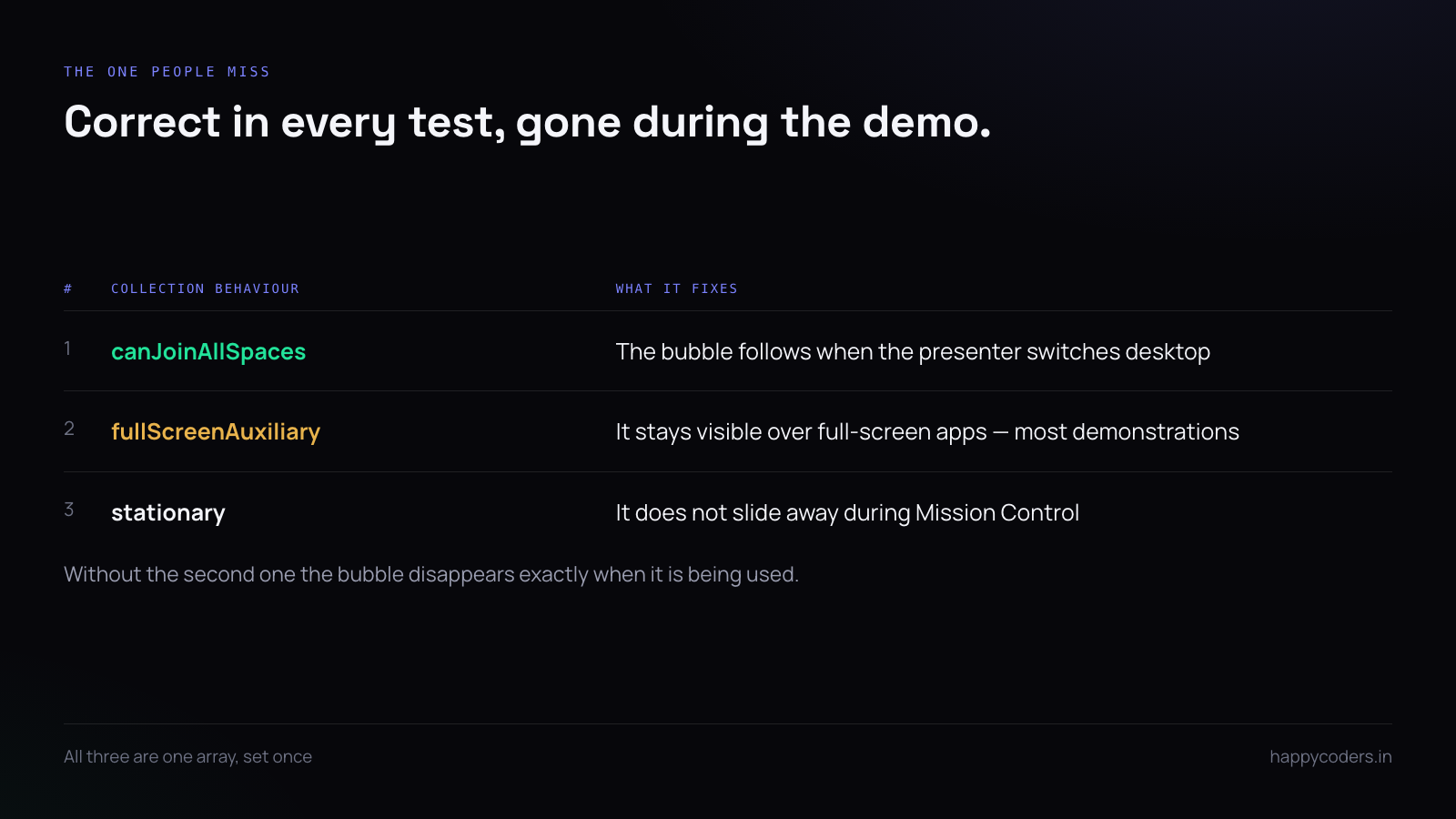
By default a window belongs to one desktop. A presenter who switches spaces loses the bubble, and a full-screen application covers it entirely:
panel.collectionBehavior = [
    .canJoinAllSpaces,          // follow between desktops
    .fullScreenAuxiliary,       // stay visible over full-screen apps
    .stationary                 // do not slide during Mission Control
]
.fullScreenAuxiliary is the one people miss. Without it the bubble is correct in every test and disappears the moment somebody demonstrates something full screen, which is most demonstrations.
Never take focus
A floating window that becomes key steals typing from the application being demonstrated. Two settings together prevent it:
// in the panel
panel.becomesKeyOnlyIfNeeded = true
panel.hidesOnDeactivate = false

// in NSPanel subclass
override var canBecomeKey: Bool { false }
override var canBecomeMain: Bool { false }
The .nonactivatingPanel style mask in the constructor is the third part. Dragging the bubble should move it without bringing your application forward — if clicking the bubble switches the active app, one of these three is missing.
Dragging a borderless window
With no title bar there is nothing to drag by, so the whole surface becomes the handle:
override func mouseDown(with event: NSEvent) {
    window?.performDrag(with: event)
}
performDrag is better than tracking the mouse yourself: it handles screen edges, multiple displays and the magnetic snapping users expect, none of which is worth reimplementing.
Keeping it out of its own recording
This is the bug that reaches production, because it looks correct on the screen and wrong in the file.
On macOS 12.3 and later, SCStream can exclude specific windows from a capture:
let content = try await SCShareableContent.current
let excluded = content.windows.filter { $0.windowID == bubbleWindowID }

let filter = SCContentFilter(
    display: display,
    excludingWindows: excluded
)
Exclude by window ID rather than by application, or you also exclude the control panel and anything else your app is showing — and for a window capture of your own app, everything.
Where the capture API cannot exclude windows, the fallback is to hide the bubble for the duration of each captured frame, which is not practical, or to position it outside the captured region, which is what most tools do when recording a selected area.
Circular, with the corners genuinely gone
A round bubble is a square window with a mask. The square must not receive clicks or cast a shadow:
contentView.wantsLayer = true
contentView.layer?.cornerRadius = bounds.width / 2
contentView.layer?.masksToBounds = true
The corners still accept mouse events unless you say otherwise, which produces a window that appears round and blocks clicks in a square around it — a complaint that is hard to describe and easy to reproduce:
override func hitTest(_ point: NSPoint) -> NSView? {
    let r = bounds.width / 2
    let c = NSPoint(x: r, y: r)
    let d = hypot(point.x - c.x, point.y - c.y)
    return d <= r ? super.hitTest(point) : nil
}
Mirroring, which everyone expects
A presenter watching themselves expects a mirror. A viewer watching the recording expects not to see mirrored text on a whiteboard behind them.
Mirror the preview, not the capture. They are two different transforms and conflating them is why some tools produce recordings with backwards lettering:
previewLayer.setAffineTransform(CGAffineTransform(scaleX: -1, y: 1))
// the capture connection is left alone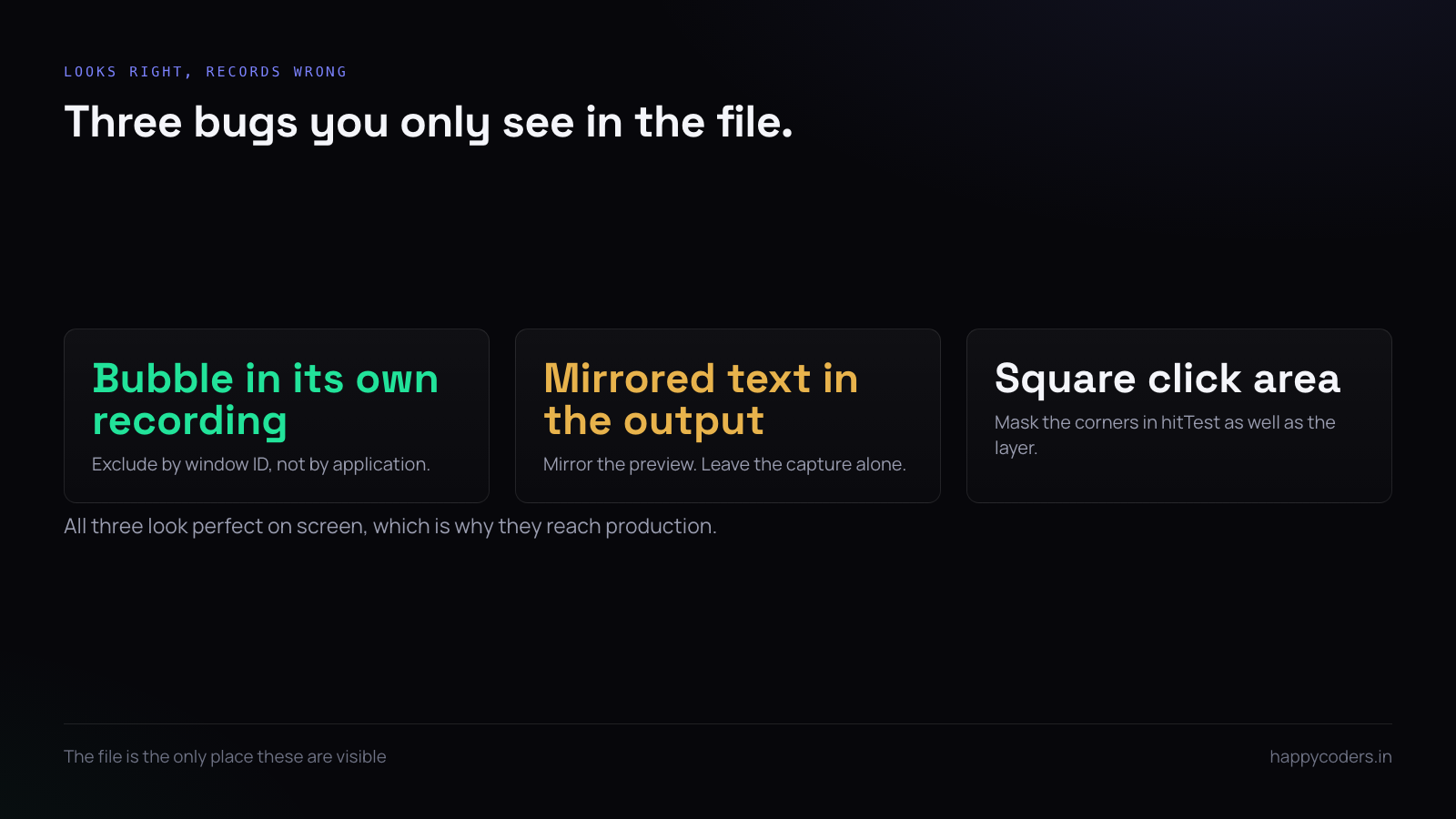
When the camera disappears
Webcams get unplugged, claimed by another application, or disabled by a privacy switch mid-recording. The bubble should degrade rather than freeze on the last frame, which looks like a crash:
NotificationCenter.default.addObserver(
    forName: .AVCaptureDeviceWasDisconnected, object: nil, queue: .main
) { _ in self.showPlaceholder() }
A placeholder with the person's initial is better than a frozen face, and far better than a black circle that the presenter will not notice for ten minutes.
Remembering where it was
Save the position per display configuration, not globally. A bubble parked bottom-right on a laptop ends up off-screen when an external monitor is disconnected:
let key = NSScreen.screens.map { $0.frame.debugDescription }.joined()
defaults.set(NSStringFromRect(panel.frame), forKey: "bubble.\(key.hashValue)")
And on restore, clamp to the visible frame of a screen that currently exists, because the saved rectangle may name a display that is no longer attached.
A short answer
Use an NSPanel at .statusBar level, not higher. Set canJoinAllSpaces and fullScreenAuxiliary or it vanishes during the demonstration. Refuse key and main so it never steals typing. Exclude it from the capture by window ID. Mask the corners in hitTest as well as the layer. Mirror the preview and not the capture. Degrade when the camera goes, and clamp the saved position to a screen that still exists.