Packaging an Electron App as a .deb That Actually Installs
Packaging an Electron App as a .deb That Actually Installs
You have an Electron app that runs on Linux. The packaging step produces a .deb, it installs on your machine, and you ship it.
Then a user on a clean Ubuntu installs it and gets a dependency error, or worse, it installs and then does nothing when launched.
Your machine is not a clean machine
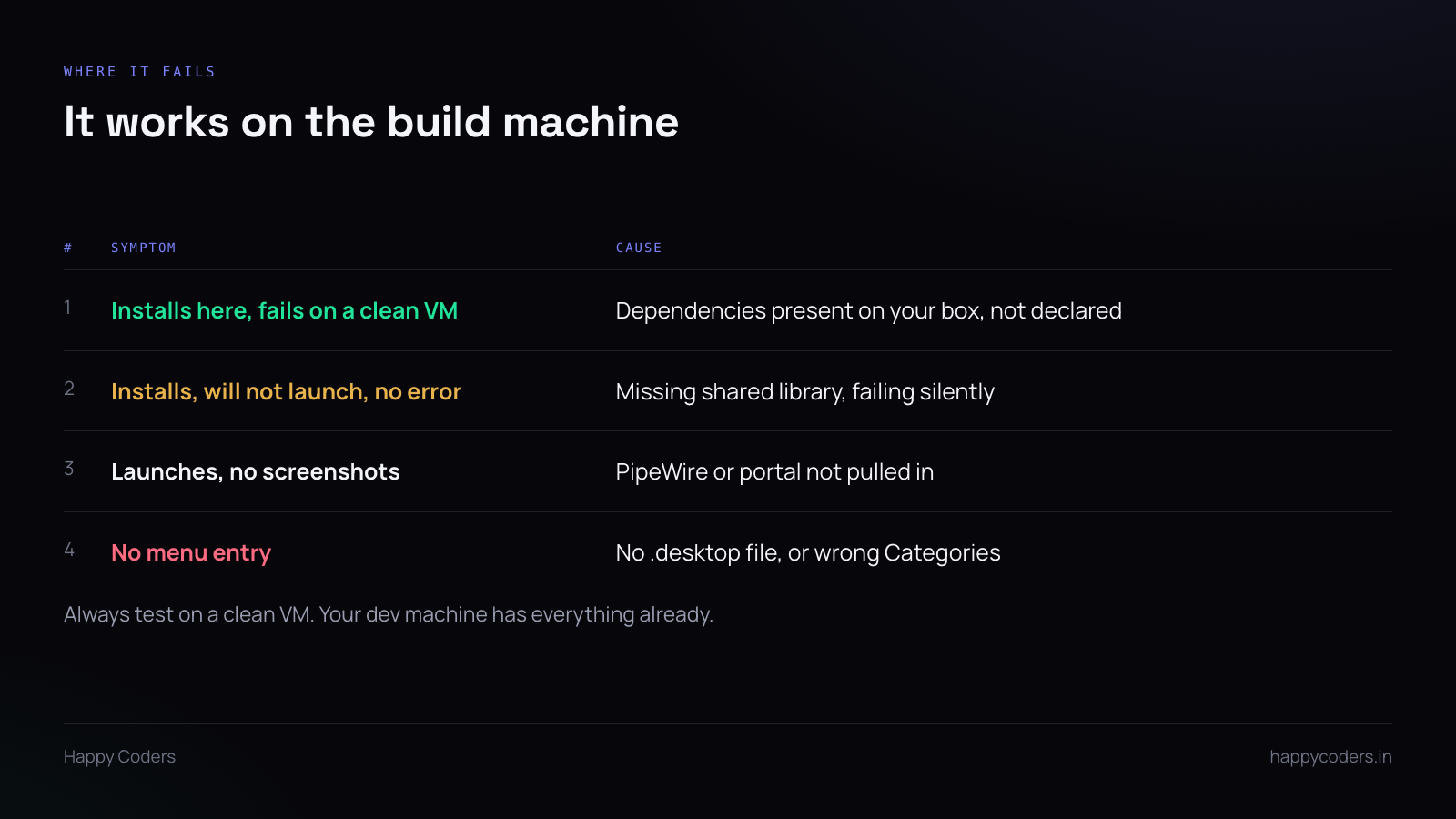
You have been developing on this box for months. It has Node, build tools, a dozen libraries pulled in by other packages, and whatever your desktop environment brought with it.
A fresh Ubuntu install has almost none of that. Electron depends on a long list of shared libraries — GTK, NSS, X11 bits, ALSA — and if the package does not declare them, dpkg installs happily and the binary fails to start with nothing useful in the terminal.
Test on a clean virtual machine. Not a container, a VM with a desktop, because the failures you are looking for are graphical. This is the single step that catches almost everything.
The control fields
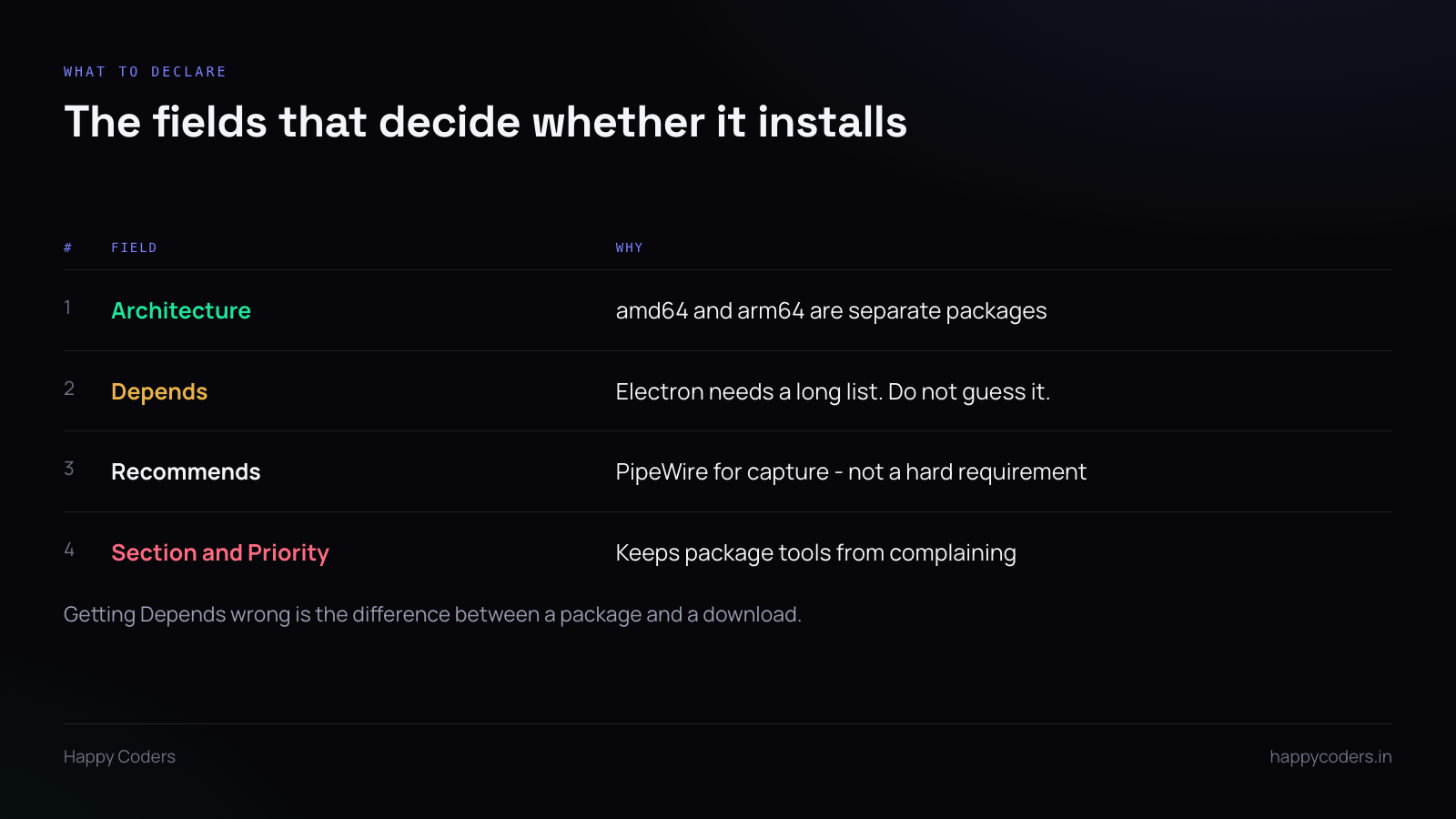
Architecture. amd64 and arm64 are separate packages with separate builds. There is no universal binary here. Ship both or state plainly which one you support, because a user on an ARM machine installing an amd64 package gets a confusing failure.
Depends. The long one. Do not write it by hand from memory — the packaging tools for Electron generate a reasonable list, and the right move is to let them, then verify on the clean VM.
Recommends rather than Depends for things that enable a feature but are not required to start. PipeWire is the example for a screen-capture app: without it capture will not work, but the app should still install and run and tell the user what is missing. Making it a hard dependency means someone who only wants time tracking cannot install at all.
Section and Priority. Cosmetic, and omitting them makes package tools emit warnings that look alarming to a user reading install output.
The .desktop file
Without it there is no menu entry, and for a GUI app that means the user installs successfully and then cannot find it.
It needs the executable path, an icon, and Categories that the desktop recognises. Get the categories wrong and it lands somewhere nobody looks.
Install icons at several sizes into the standard hicolor directories. One 512px icon means the menu shows a blurry scaled-down version, which is a small thing that makes software look unfinished.
Where the files go
Electron apps commonly end up under /opt, which is acceptable for a bundled third-party application. Put a symlink in /usr/bin so the binary is on the path.
Do not install into /usr/local from a package. That path belongs to the local administrator, and packages writing there is the kind of thing that causes conflicts nobody can diagnose later.
Post-install scripts: as little as possible
Every line in a maintainer script is a line that can fail during installation and leave the package half-configured, which is a state users find very hard to get out of.
Updating the desktop database and the icon cache is reasonable. Anything that writes to a user’s home directory is not — the install runs as root and you will create root-owned files in someone’s home, which breaks the app silently for that user.
Make every script idempotent. It will run again on upgrade.
Upgrades and uninstalls
Test both, on the clean VM.
Install version one, install version two over it, check the app still launches and the user’s settings survived. Then apt remove and check nothing is left running and no broken menu entry remains.
Uninstall is the one nobody tests, and a package that leaves a dead launcher behind is the last impression your software makes.
Signing, and what it does not do
Debian packages can be signed, and repositories are. A standalone .deb downloaded from a website is generally installed with the user accepting it directly.
So unlike macOS and Windows, there is no Gatekeeper or SmartScreen equivalent blocking an unsigned download. That makes Linux distribution easier and it also means the burden of being trustworthy is entirely on you — publish a checksum next to the download, and keep the download on your own domain.
What the user should see
Two lines on the download page, not a manual:
The command to install it (sudo apt install ./filename.deb, which resolves dependencies, unlike dpkg -i which does not), and one sentence about the screen-sharing prompt they will see the first time capture starts.
That second sentence prevents most of the support contact. A system dialog nobody warned them about is a dialog people refuse.