Selecting a Region of the Screen Is a Coordinate Problem
Selecting a Region of the Screen Is a Coordinate Problem
Letting somebody drag a rectangle over their screen to choose what gets recorded is, on the face of it, the simplest feature in a screen recorder. Track a mouse down, track a drag, track a mouse up, you have a rectangle.
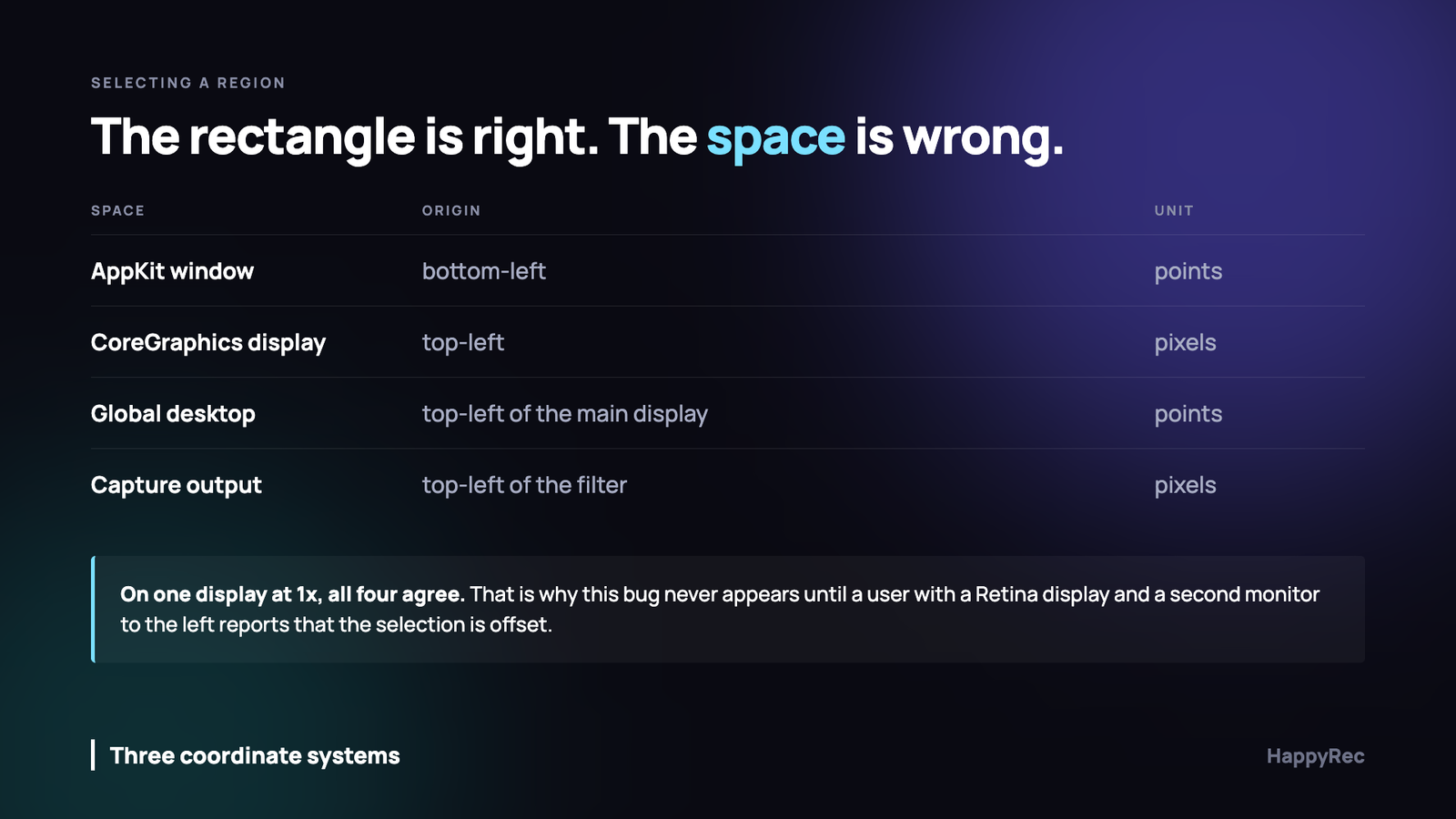
The rectangle is never the problem. The problem is that macOS has several coordinate spaces which agree exactly on a single non-Retina display and disagree in every other configuration, and the disagreement is invisible until a customer with two screens tells you the recording is capturing the wrong area.
Four spaces, one rectangle
The window space your selection overlay lives in has its origin at the bottom-left and is measured in points. This is the AppKit convention and it is the one your drag code is naturally working in.
The display space that capture APIs use has its origin at the top-left and is measured in pixels. Not points. On a Retina display those differ by a factor of two.
The global desktop space has its origin at the top-left of the main display, and every other display is positioned relative to it — which means a screen arranged to the left of the main one has negative x coordinates for its entire width.
And the capture output has its own space, relative to whatever filter you gave it, in pixels.
On one display at 1x, all four of these produce the same numbers. That is precisely why this bug ships: it is not reproducible on the machine it was written on.
The conversion, in the right order
The sequence that works is to resolve which screen the selection is on first, and only then convert coordinates in that screen’s terms. Doing it the other way round — converting first, then working out the screen — means you have already applied a scale factor that may belong to a different display.
- Take the selection in window coordinates. Bottom-left origin, points.
- Convert to global desktop coordinates. Still points, now top-left origin, and possibly negative.
- Find the screen that contains the selection. Use the point at the centre of the rectangle, not a corner — a corner can legitimately sit on a neighbouring screen.
- Read that screen’s backing scale factor. Per screen, every time. Never cache it globally.
- Convert to that screen’s pixels, relative to that screen’s origin.
Step three is the one most implementations skip, because on one display the answer is obvious. Step four is the one that breaks when a user connects an external monitor to a Retina laptop, because the two screens have different scale factors at the same moment and any single cached value is wrong for one of them.
Negative coordinates are not an error
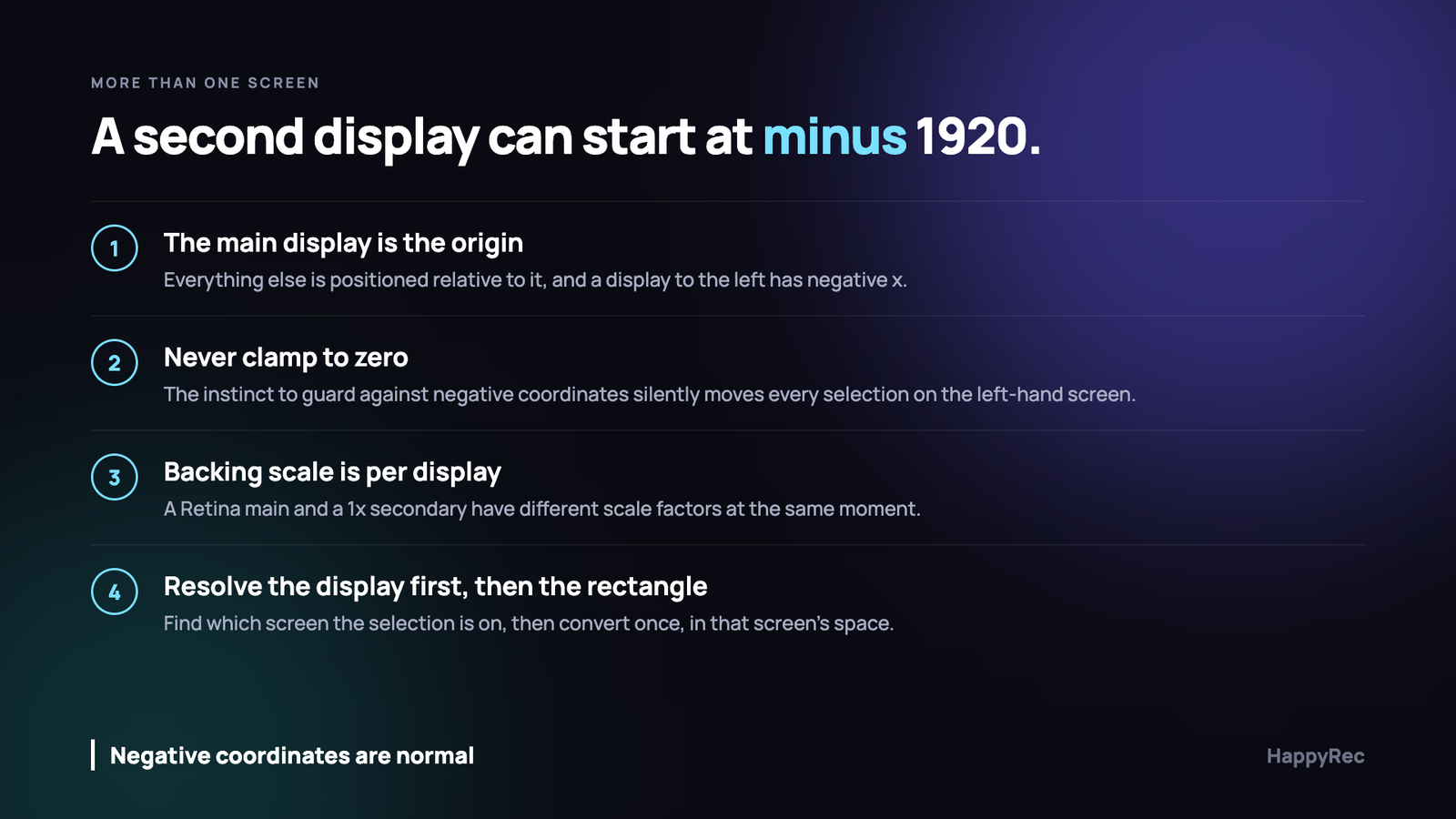
The instinct when you see a negative coordinate in a rectangle is that something has gone wrong, and the instinctive fix — clamp it to zero — is exactly the bug.
A user whose second monitor sits to the left of their laptop has an entire screen at negative x. Clamping moves every selection on that screen to the left edge of the main display, which means the recording captures a region the user never chose, on the wrong screen, with no error.
The same applies vertically for a display arranged above the main one. Guard against nonsense — zero width, inverted rectangles, a selection with no screen — but never against a negative origin.
Normalising the drag
A drag can go in any direction, so the raw rectangle can have negative width or height depending on which way the user moved. Normalise it immediately, at the point of capture, before anything else touches it. Every downstream calculation then gets to assume positive dimensions, and you avoid a family of bugs where a right-to-left drag produces a valid-looking rectangle that captures nothing.
The overlay window itself
The window you draw the selection in has requirements that are easy to get wrong and immediately obvious to a user.
- It must cover every screen, not the main one. A user should be able to start a drag on one display and finish on another, even if the resulting selection is only valid on one.
- It must sit above everything, including full-screen applications, or the user cannot select the thing they are trying to record.
- It must not appear in the recording. Exclude it from the capture filter explicitly.
- Escape must cancel. Every time, from any state, including mid-drag.
- It must show the size while dragging. People select regions to match a target size far more often than you would expect.
The last one is worth more than it sounds. Showing the pixel dimensions live during the drag turns a vague gesture into a precise one, and it costs a label.
What changes while you are not looking
A selection is a snapshot of an arrangement that can change underneath it. Displays get connected, disconnected and rearranged, and resolution changes when a user plugs into a projector.
If a selection is stored between sessions, it must be validated against the current arrangement before use. A saved region on a screen that is no longer attached is not an error worth showing on launch, but it is absolutely an error worth showing at the moment somebody presses record.
What we do is keep the selection tied to a screen identity rather than to coordinates alone. If that screen is present, the region is restored. If it is not, the user is asked to select again, with an explanation naming the missing display.
The behaviour to avoid is silently falling back to the main screen at the same coordinates, which produces a recording of the wrong content that looks entirely deliberate.
Testing without a second monitor
Most of these bugs need hardware you may not have on your desk, but two of them can be tested without any.
Changing the main display’s scale in System Settings — from Default to More Space and back — exercises the scale factor path without a second screen, because the backing scale changes underneath a running application.
And the display arrangement panel lets you move the arrangement of screens you do have; with a single screen you cannot create negative coordinates, but you can at least confirm your code reads positions from the system rather than assuming them.
For the rest, borrow a second monitor for an hour. Arrange it to the left, arrange it above, unplug it mid-recording. Three arrangements, ten minutes, and it finds every one of the bugs described here.
Live preview of the selection
A rectangle drawn on a dimmed screen is enough to select a region and not enough to be confident about it. What people want to know before pressing record is whether the region contains what they think it contains, and the only honest answer to that is a preview of the actual capture.
This is more useful than it sounds, because it exercises the entire coordinate conversion path before a recording exists. If the preview shows the wrong area, the conversion is wrong, and the user finds out in two seconds rather than after a twenty-minute take.
We treat the preview as the test. If the preview is right, the capture is right, because they go through the same code. Building a preview that takes a different path to the capture defeats the purpose entirely.
Aspect ratio, and why people care
A freely dragged rectangle is almost never a useful shape for a recording that will be published somewhere. People are recording for a specific destination and that destination has a shape.
Offering a small set of constrained ratios — sixteen by nine, four by three, square, vertical — turns a vague drag into a decision. Hold a modifier to constrain, or pick from a control before dragging; either works, and having neither means everybody crops afterwards in another application.
One implementation note: constrain during the drag, not after. A rectangle that jumps to a different shape when the mouse is released is disconcerting, and it means the region the person saw is not the region they got.
Even dimensions
Video encoders want even pixel dimensions and some will refuse an odd width or height outright. A user drag will produce odd numbers roughly half the time.
Round down to the nearest even number, silently, at the point the selection is finalised. Rounding up can push the region past the edge of the screen, which fails in a much more confusing way than losing a single row of pixels nobody will ever see.
Keyboard, because a mouse is not precise
Dragging to a pixel is difficult, and for anybody who cares enough about the region to choose one, the last few pixels usually matter.
Arrow keys to nudge the selection, with a modifier to resize rather than move, cost very little and change the feature from approximate to exact. Combined with the live dimension readout, it lets somebody land on exactly 1920 by 1080 without a steady hand.
It is also the accessible path. A selection tool that can only be driven by a precise drag excludes people who cannot make one, and the fix is the same handful of key handlers.
Recording a window instead of a rectangle
Some of the time, the region a person is dragging around is simply a window, and they are drawing a rectangle because that is the tool you gave them.
Offering window selection alongside region selection removes an entire class of imprecision: the recording follows the window if it moves, the edges are exact, and the shadow and title bar are included or excluded by choice rather than by how carefully somebody dragged.
The cost is the one described earlier — a window can close mid-recording — but for the common case of recording a single application it is the better tool, and the fact that it survives the user moving the window is worth a great deal in a long take.
What works well is to make the selector do both: hovering over a window highlights it and a click selects it, while a drag anywhere else produces a free region. One overlay, two behaviours, and the user does not have to choose a mode before they know what they want.
Excluding your own interface
A screen recorder that records itself is a specific kind of embarrassing, and it happens on the first recording somebody makes with a control panel visible.
The exclusion has to cover more than the main window. The selector overlay, any floating control panel, the preview, and anything the app shows over the screen while recording — all of it needs to be out of the capture, and all of it can be created after the capture started.
This is a real constraint on the design: a control that appears during recording has to be excluded at the moment it appears, which means the capture filter is not a thing you build once at the start. It is a thing you update whenever your own window list changes.
The alternative some applications choose is to hide their interface entirely during recording, which avoids the problem and removes the stop button. That trade is the reason a menu bar item exists.
What we would tell anyone building this
- Normalise the drag rectangle immediately.
- Find the screen before converting anything. Use the centre point.
- Read the backing scale per screen, every time. Never cache one globally.
- Never clamp coordinates to zero. Negative is a normal arrangement.
- Cover every display with the overlay, and exclude it from the capture.
- Show live dimensions during the drag.
- Tie a saved selection to a screen identity, and fail loudly when that screen is gone.
- Test with a borrowed monitor on the left. One hour finds all of it.
This is a feature where being careful costs a day and being casual costs a support queue you cannot reproduce, because everything works perfectly on every machine your team owns.