
Screen Recording From a Browser Extension That Keeps Going When You Minimise It
The first version of our browser screen recorder worked perfectly — until you minimised it. Then the recording froze on whatever frame was showing, the audio carried on, and the file came out as ten minutes of sound over a still picture.
That is the default behaviour of the web platform, not a bug in it. Browsers aggressively throttle pages you can’t see: timers slow to once a second or stop, requestAnimationFrame stops entirely, and anything drawing to a canvas on the main thread stops with them. For almost every web page that is exactly right. For a screen recorder that composites a webcam bubble and a watermark onto every frame, it is fatal — and “please don’t minimise this window” is not a product.
This post walks through how HappyRec’s Chrome and Edge extension keeps recording at full frame rate while minimised or buried behind other windows: a standalone recorder window, a compositor in a Web Worker built on MediaStreamTrackProcessor, OffscreenCanvas and MediaStreamTrackGenerator, and the frame-ownership rules that decide whether it runs for an hour or stalls after ten seconds.
Where the recorder can live
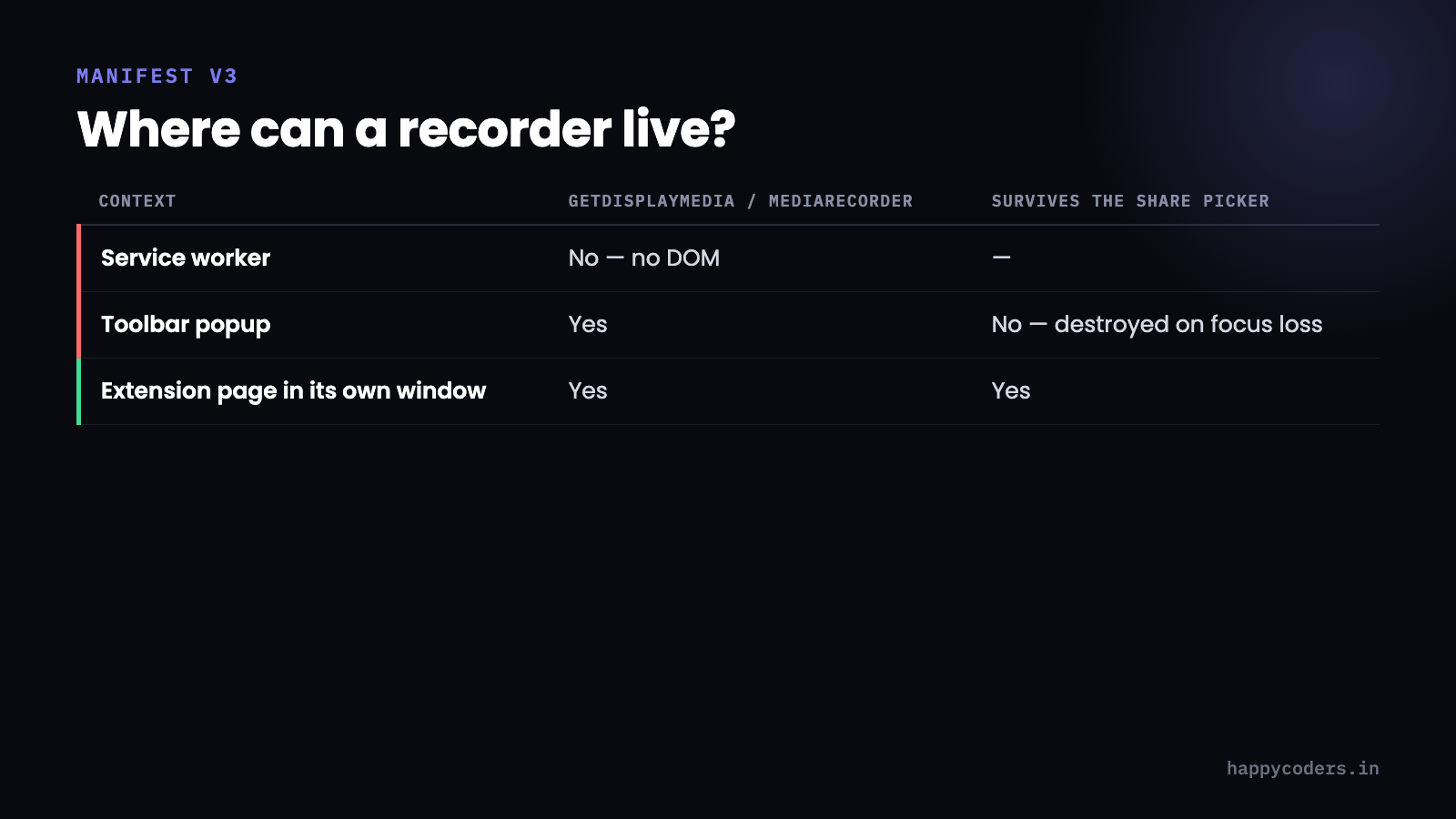
A Manifest V3 extension gives you three places to run code, and two of them can’t record.
- The service worker has no DOM. It can’t call
getDisplayMedia(), can’t runMediaRecorder, can’t use a canvas. It is good for exactly one thing here: deciding which window to show. - The toolbar popup looks like the natural home for a recorder. It isn’t. A popup is destroyed the moment it loses focus — and the browser’s own “choose what to share” picker takes focus. Open the picker from a popup, and the popup, the stream and the recording are gone before the user has chosen anything.
- A normal extension page in its own window survives focus changes, minimising and being covered. That’s where the recorder lives.
So clicking the toolbar icon opens — or focuses — a small window of type popup (a chrome-less window, not the toolbar popup). The service worker keeps exactly one of them, remembering its id in session storage so a second click brings the same window forward instead of opening another recorder:
// background.js (service worker) — one recorder window, reused
chrome.action.onClicked.addListener(async () => {
  const { recorderId } = await chrome.storage.session.get('recorderId');
  if (recorderId) {
    try { await chrome.windows.update(recorderId, { focused: true }); return; }
    catch { /* window was closed — fall through and open a new one */ }
  }
  const win = await chrome.windows.create({
    url: chrome.runtime.getURL('src/recorder.html'),
    type: 'popup', width: 460, height: 760,
  });
  await chrome.storage.session.set({ recorderId: win.id });
});
Session storage clears when the browser restarts, which is what we want: a stale window id from yesterday should never be trusted.
Why a canvas on the page stops
A screen recorder that only records the screen can hand the capture stream straight to MediaRecorder, and the browser’s media pipeline keeps going when the page is hidden. The trouble starts the moment you want to change the picture — burn a webcam bubble into the corner, crop to an area, stamp a watermark, add a badge.
The textbook approach draws each frame onto a <canvas> with requestAnimationFrame and records the canvas with captureStream(). On a visible page it’s fine. Minimise the window and requestAnimationFrame stops firing, so no frames are drawn, so the canvas stream repeats its last frame for as long as the window stays minimised. Switching to setInterval doesn’t save you: timers on hidden pages are clamped and, in some situations, frozen.
We needed the compositing loop to run somewhere the page’s visibility doesn’t reach. Dedicated workers are that place: their timers aren’t tied to the page being visible, and they can draw with OffscreenCanvas.
The pipeline: tracks in, track out
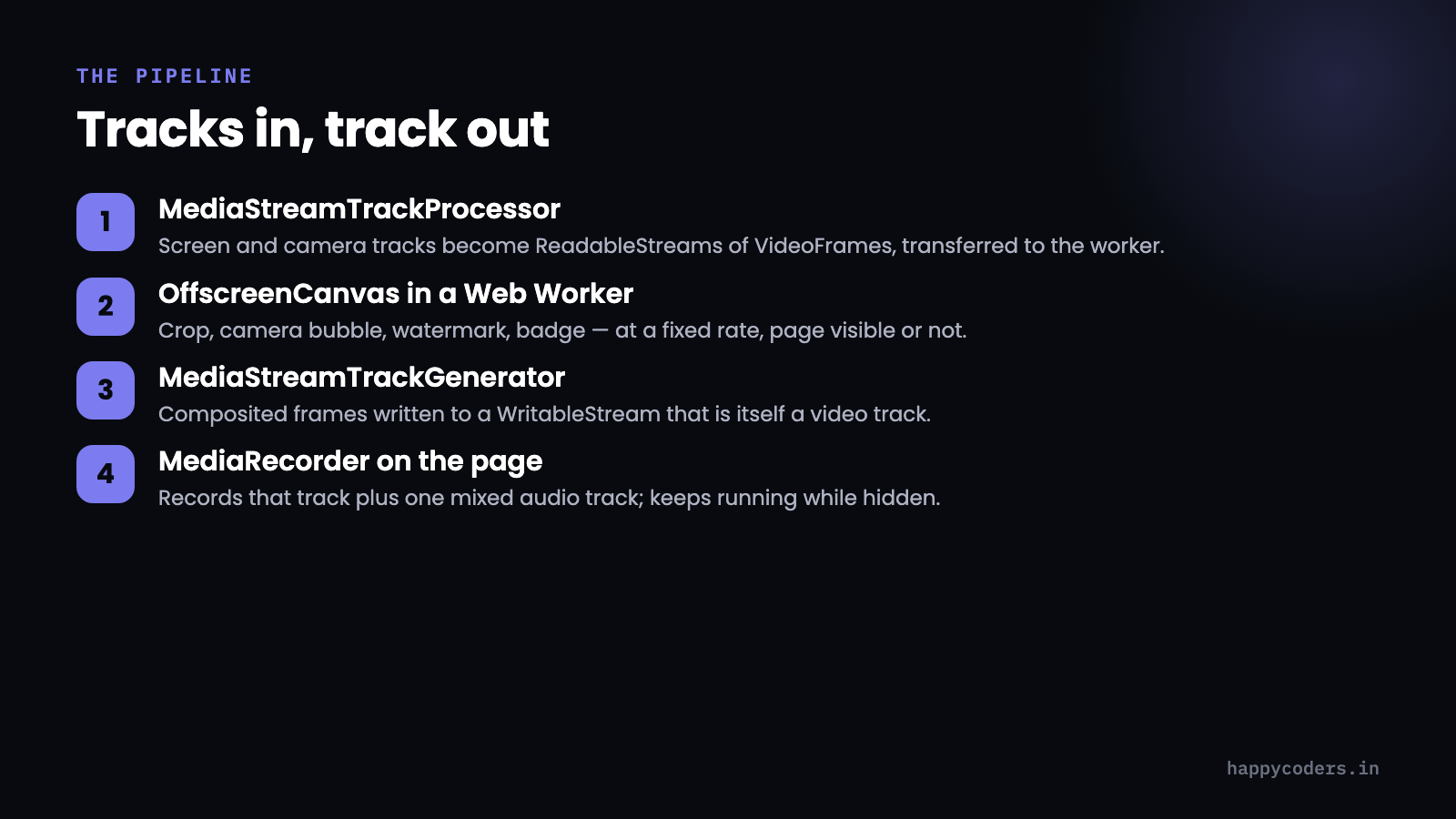
The hard part of moving compositing into a worker is getting video in and out of it. You can’t post a MediaStream to a worker. You can post streams of frames, and the Insertable Streams APIs turn a track into exactly that:
MediaStreamTrackProcessorturns a video track into aReadableStreamofVideoFrameobjects.MediaStreamTrackGeneratorgoes the other way: aWritableStreamofVideoFrames that is a video track.
Readable and writable streams are transferable, so the page can hand them to a worker and get on with nothing:
// recorder page: hand the raw tracks to a worker
const screen = display.getVideoTracks()[0];
const reader = new MediaStreamTrackProcessor({ track: screen }).readable;
const camReader = camTrack ? new MediaStreamTrackProcessor({ track: camTrack }).readable : null;
const generator = new MediaStreamTrackGenerator({ kind: 'video' });

worker.postMessage({ reader, camReader, writable: generator.writable, layout },
                   [reader, ...(camReader ? [camReader] : []), generator.writable]);

// the composited track is what MediaRecorder records
const out = new MediaStream([generator, mixedAudioTrack]);
const recorder = new MediaRecorder(out, { mimeType: pickMimeType() });
The page’s only remaining jobs are the UI and MediaRecorder — both of which keep working while hidden, because neither depends on the page’s timers to produce frames.
The compositor loop
Inside the worker, two readers pull frames as fast as they arrive — one for the screen, one for the camera — and a fixed-rate loop draws the latest of each onto an OffscreenCanvas and writes the result to the generator. A simplified version:
// compositor-worker.js — runs at full speed even when the page is hidden
let latestScreen = null, latestCam = null;

async function pump(readable, set) {
  const r = readable.getReader();
  for (;;) {
    const { value: frame, done } = await r.read();
    if (done) return;
    set(frame);                       // keep only the newest frame...
  }
}
pump(screenReader, f => { latestScreen?.close(); latestScreen = f; });   // ...and close the old one now
pump(camReader,    f => { latestCam?.close();    latestCam = f; });

const canvas = new OffscreenCanvas(width, height);
const ctx = canvas.getContext('2d');
const writer = writable.getWriter();

setInterval(async () => {             // worker timers are not throttled with the page
  if (!latestScreen) return;
  drawScreen(ctx, latestScreen, crop);
  if (latestCam) drawBubble(ctx, latestCam, bubble);
  drawWatermark(ctx, text); drawBadge(ctx);
  const frame = new VideoFrame(canvas, { timestamp: latestScreen.timestamp });
  await writer.write(frame);          // the sink owns it now — do NOT close it here
}, 1000 / fps);
It’s short, and almost every line in it is load-bearing.
Frame ownership: the rule that decides whether it stalls
A VideoFrame isn’t an ordinary JavaScript object. It holds a reference to a decoded image in a small pool owned by the capture source — often GPU memory. When you’re done with one, you call close() and the buffer goes back to the pool.
If you don’t, the pool runs dry. The capture source has nowhere to put the next frame, and it simply stops producing them. There’s no exception and no error event: the recording just freezes, typically a few seconds in. Two rules prevent it:
- Keep only the latest frame, and close the previous one immediately. The screen may deliver frames faster than you composite, and the camera at a different rate again. Whatever you don’t draw must be closed the moment a newer one arrives — not batched, not left for garbage collection.
- Never close a frame after writing it to the generator. Writing transfers ownership to the sink. Closing it afterwards destroys a frame the encoder hasn’t used yet, and you get black or corrupt frames in the output.
Those two rules look contradictory until you see that they apply to different frames: you close what you received and didn’t use; you never close what you produced and handed on.
Don’t fall back silently
MediaStreamTrackProcessor and MediaStreamTrackGenerator are Chromium APIs. On a browser without them, the tempting move is to fall back to the old main-thread canvas. We deliberately don’t. That fallback works in every test you run with the window in front of you, and then freezes for the user who minimises it — exactly the failure the whole design exists to prevent. If the APIs are missing, the recorder says so clearly instead. The extension requires Chrome or Edge 116 or later, which has them.
Audio: one track, mixed in the page
MediaRecorder records one audio track. A screen recording usually has two sources — the microphone and the system or tab audio — so they have to be mixed first, in an AudioContext:
const ctx = new AudioContext();
const dest = ctx.createMediaStreamDestination();
ctx.createMediaStreamSource(new MediaStream([micTrack])).connect(dest);
if (systemTrack) ctx.createMediaStreamSource(new MediaStream([systemTrack])).connect(dest);
// note: nothing is connected to ctx.destination — the user must not hear themselves
const mixedAudioTrack = dest.stream.getAudioTracks()[0];
The detail people miss is the last comment. Connecting either source to ctx.destination would play it through the speakers, and the user would hear their own voice with a delay while recording. The mix goes only to the recording.
Which “system” audio you get depends on what the user shares. Sharing a tab gives you that tab’s own sound on every platform. Sharing a whole screen or a window offers full system audio only where the browser and operating system allow it, so the recorder treats the system track as optional: if it isn’t there, the mix is simply the microphone. It’s worth telling users this before they record a ten-minute demo of something that plays sound, on a platform that won’t share it.
Audio stays on the page rather than in the worker; Web Audio isn’t available in workers, and unlike canvas drawing, an AudioContext keeps processing when the page is hidden.
Choosing the container
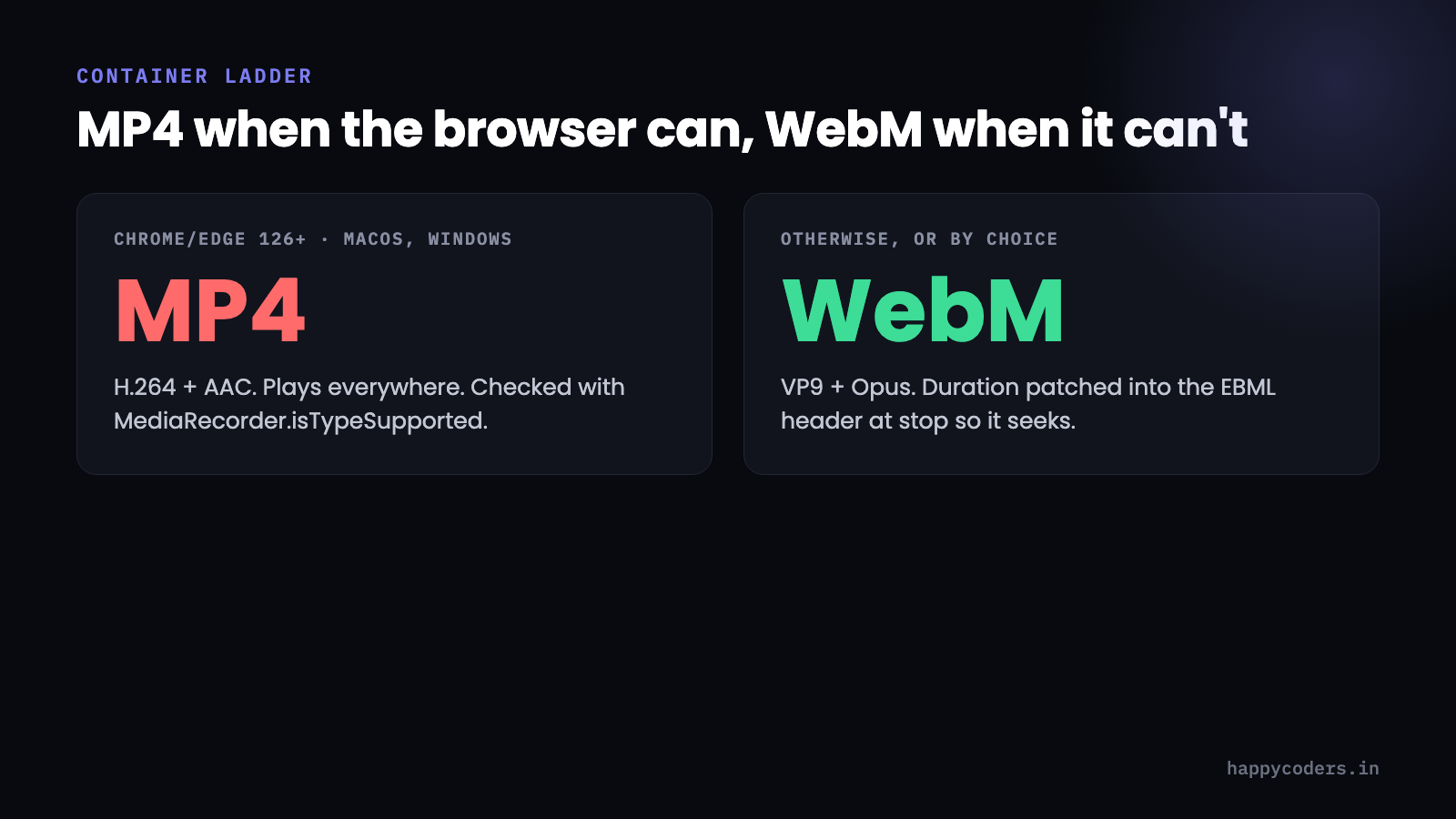
Chrome and Edge 126 and later can record H.264 and AAC into MP4 on macOS and Windows; older versions and other platforms record VP9 and Opus into WebM. We ask the browser rather than guess, and let the user force WebM if they prefer it:
function pickMimeType(preferWebm = false) {
  const ladder = preferWebm ? [] : [
    'video/mp4;codecs=avc1.42E01F,mp4a.40.2',   // Chrome/Edge 126+ on macOS and Windows
  ];
  ladder.push('video/webm;codecs=vp9,opus', 'video/webm;codecs=vp8,opus', 'video/webm');
  return ladder.find(t => MediaRecorder.isTypeSupported(t)) ?? '';
}
WebM from Chrome’s recorder has one well-known flaw: it doesn’t write a duration into the file header, because it doesn’t know the duration until recording ends. Many players then show the length as unknown and can’t seek. When recording stops, we patch the duration into the WebM’s EBML header before offering the file for download.
The camera preview that crashed the browser
One more lesson from testing. In one Edge release, minimising a window that contained a playing <video> element showing a live camera stream crashed the entire browser — every window, every tab. Our recorder window shows a small camera preview, and minimising while recording is the default.
The fix works because of the worker design: the compositor reads camera frames from the camera track, never from the preview element. So just before minimising, the recorder detaches the preview videos’ srcObject, and reattaches them when the window is restored. The recording never notices; the crash can’t happen.
Shortcuts and the toolbar badge
Once the recorder window can be minimised, users need a way to control it without bringing it back. Two small pieces do that.
The toolbar badge shows the state at a glance: a red REC while recording and a gold II while paused. The recorder page tells the service worker whenever its state changes, and the service worker sets the badge — the page can’t set it reliably itself while hidden, and the service worker is the one component that’s always reachable from the toolbar.
Keyboard commands — stop, pause, draw — are declared in the manifest and arrive at the service worker, which forwards them to the recorder window as messages. Stopping or pausing from a shortcut works perfectly while minimised, because MediaRecorder.stop() and pause() don’t need a user gesture. Starting does, which is why there’s no “start recording” shortcut.
Permissions that keep the store review simple
A screen recorder that asks for access to every website looks alarming in the store and draws a heavier review. Ours needs very little, because getDisplayMedia() itself requires no extension permission at all — the browser’s own picker is the consent.
- storage, downloads — settings, and saving the finished file.
- activeTab and scripting — to inject the on-page drawing toolbar into the one tab where the user pressed the shortcut or used the context menu.
activeTabgrants access to that tab only, only after that gesture. - <all_urls> as an optional permission — requested only if the user clicks “Draw on current page” inside the recorder window, where there’s no gesture on the target tab to lean on.
Moving <all_urls> into the required permissions would have been one line of manifest and a much scarier install warning. Keeping it optional means most users never see it.
Things the browser simply won’t let you do
- Start recording from a keyboard shortcut.
getDisplayMedia()needs a user gesture inside the page that calls it. Shortcuts handled by the service worker can stop, pause or focus the recorder — never start it. - Remember the choice of screen. The browser asks what to share every time. That’s a privacy feature, and there’s no way around it.
- Save a recording if the browser quits mid-way.
MediaRecordercan’t finalise a file after its page is gone. The recorder warns onbeforeunloadwhile recording, which is the most it can do.
Testing something that only fails when you’re not looking
A bug that only appears when the window is minimised is hard to catch by hand, because watching it un-minimises it. The extension has an end-to-end suite that drives a real browser over the DevTools protocol: it records a tab, minimises the recorder window, restores it, and then checks the output file frame by frame — duration, size, and that the picture actually moved.
One practical snag: recent versions of Google Chrome ignore the --load-extension flag, so the suite runs on Chrome for Testing, which still honours it. And a screen-share picker that answers itself in one browser version may not in the next, so the suite’s results get read, not just counted.
What “it works” means, measurably
“The recording didn’t freeze when I minimised it” is a feeling. These are the checks that turn it into a fact, and the ones worth automating:
- Frame count against duration. A 60-second recording at 30 fps should contain close to 1,800 frames. A frozen stretch shows up as a long run of identical frames, which is easy to detect by comparing neighbouring frames’ pixels.
- Timestamps that keep rising. Each composited frame carries the source frame’s timestamp. If timestamps stall or jump while the window is hidden, the encoder will either duplicate frames or produce a file whose audio drifts against the picture.
- A file that seeks. Open the output in a player, jump to the middle and to the end. MP4 from the browser should seek immediately; WebM only seeks once its duration has been patched.
- The camera bubble still moving. The screen can look fine while the camera reader has stalled on an unclosed frame. Check the bubble region separately.
The same suite also renders the recorder window at several widths, from narrow to wide, and fails if anything overflows horizontally. That one has nothing to do with minimising — it’s just cheap to check at the same time.
The whole design, in five lines
- Record from a standalone extension window, never the toolbar popup.
- Composite in a Web Worker:
MediaStreamTrackProcessor→OffscreenCanvas→MediaStreamTrackGenerator. - Close every frame you don’t use, immediately; never close a frame you’ve written.
- Mix microphone and system audio in an
AudioContext, and never route it to the speakers. - Ask the browser for MP4, fall back to WebM, and patch the WebM duration.
None of it is exotic — every API here ships in current Chrome and Edge. The work is in noticing which parts of the web platform stop when nobody is watching, and moving the recording out of their way.
The extension is HappyRec for Chrome and Edge, free with no account: happycoders.in/product/happyrec. We also wrote about shipping one extension to both the Chrome Web Store and Edge Add-ons.