Writing an MP4 That Every Player Will Actually Open
Writing an MP4 That Every Player Will Actually Open
The file plays. It plays in QuickTime, it plays in VLC, it plays in Safari on the machine that recorded it. We sent it to a client and received back a screenshot of a black rectangle with a working audio scrubber underneath, and a message asking whether we could send it as a normal video.
Nothing in that failure is about H.264. The pixels were fine. Almost every time a recording has been rejected by somebody else’s machine, the cause has been in the container, the colour tags or the profile — three things a recorder usually sets once, early, and never looks at again.
This is what we learned writing MP4 files from AVAssetWriter in HappyRec, in the order the problems actually arrived.
A recording is two decisions, not one
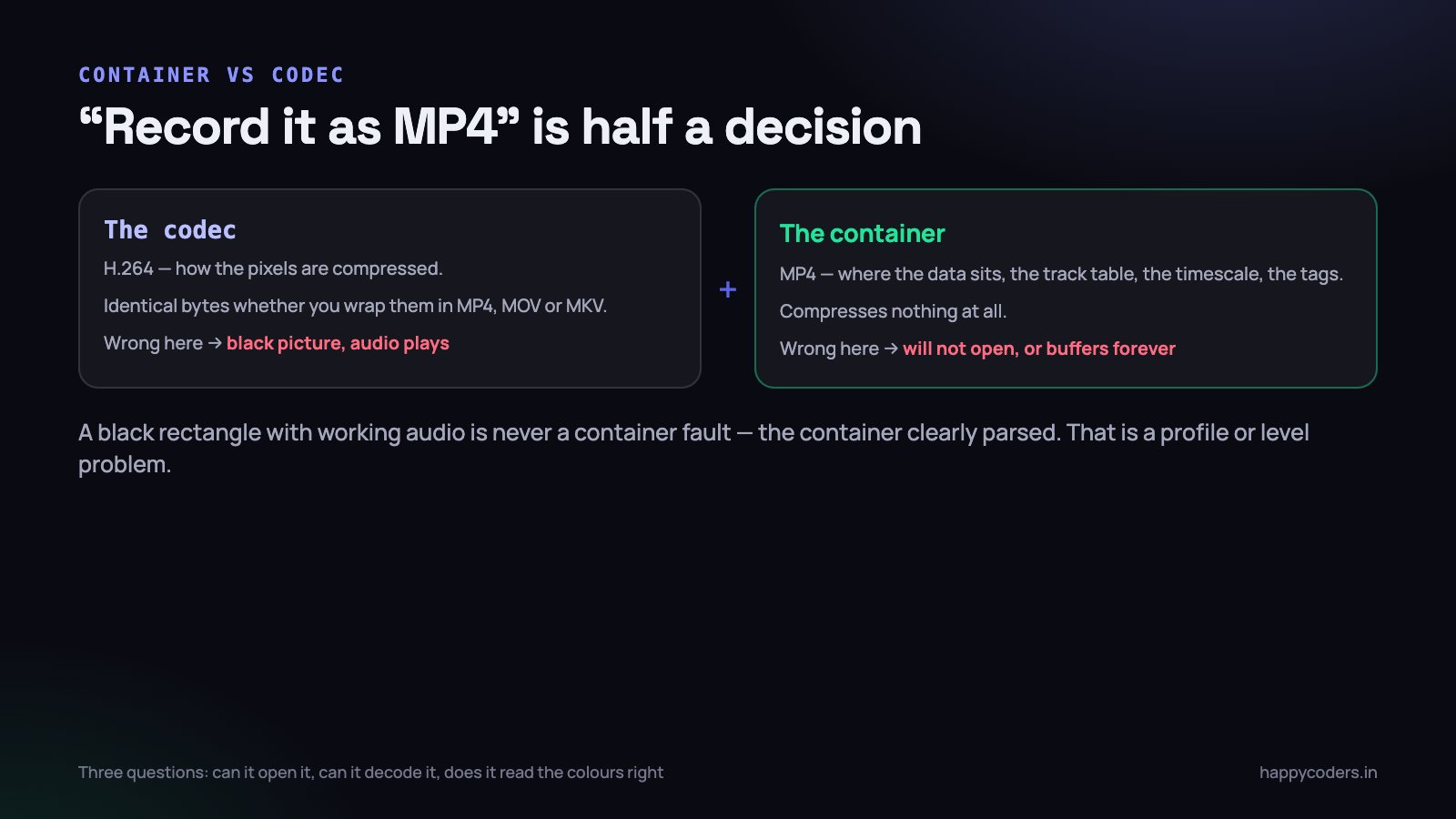
When somebody says “record it as MP4” they have made half a decision. MP4 is a container. It is a structure that says where the compressed data sits, how long each sample lasts, which track is video and which is audio, what the timescale is, and how a player should interpret the bytes it finds. It compresses nothing itself.
H.264 is a codec. It decides how the pixels are compressed. It has no opinion about files, tracks or seeking. You can put H.264 inside MP4, inside MOV, inside MKV, inside a transport stream, and the compressed pixels are byte-for-byte the same in all four.
Once you separate them, the compatibility questions separate too, and each one becomes answerable:
- Can this player open the container? A question about boxes, brands and structure. This is where “it will not open at all” comes from.
- Can this player decode the codec? A question about profile and level. This is where “audio plays, video is black” comes from.
- Does the player interpret the pixels the way you meant? A question about colour tags. This is where “it looks washed out on their screen” comes from.
Those three sentences would have saved us a fortnight. A black rectangle with working audio is never a container failure — the container clearly parsed, because the audio track was found and played. It is a decoder failure, and decoder failures are almost always profile or level.
The moov atom, and why a good file streams badly
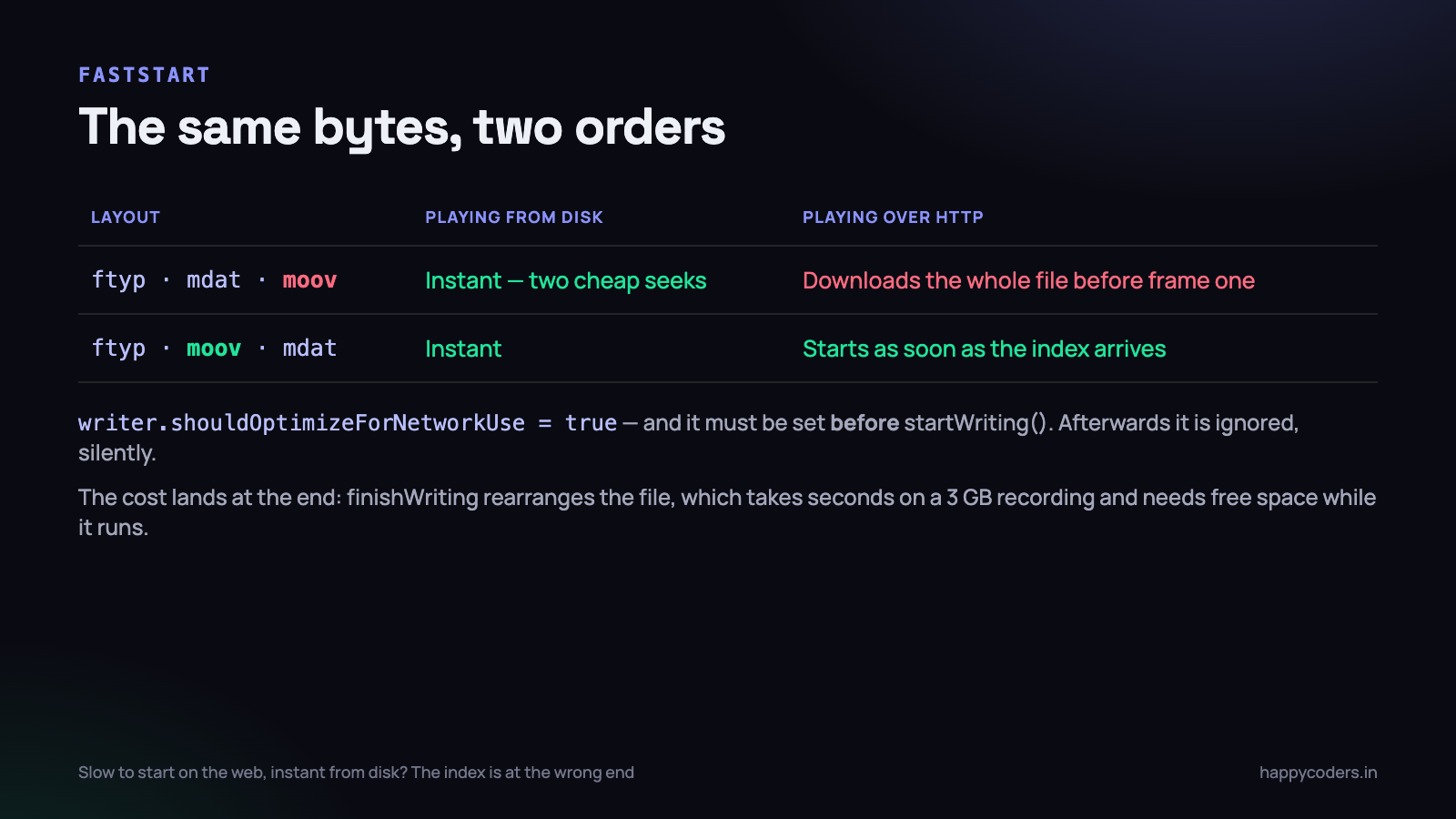
An MP4 is a flat sequence of boxes, historically called atoms. Three of them matter here. ftyp declares the brand, right at the front. mdat is the media data — the actual compressed frames, and essentially the whole file by size. moov is the index: track definitions, durations, the timescale, and a table saying which byte offset each sample starts at.
A player cannot show you a single frame until it has read moov. Without the index it does not know where frame one is, how long it lasts, or what codec to hand it to. The index is small — a few hundred kilobytes for an hour of video — but it is mandatory.
And it is normally written last. A writer producing video in real time does not know how big mdat will be, or how many samples it will hold, until the recording ends. So it streams samples into mdat as they arrive, and when you stop, it writes moov after them. That is the natural, correct thing for a recorder to do.
On your own disk this is invisible. The player opens the file, seeks to the end, reads the index, seeks back and starts decoding. Two seeks on an SSD cost nothing.
Over HTTP it is a different story. A browser progressively downloading a 900 MB file has to reach the end of it before it can draw a frame. Some servers and some players will range-request the tail and recover; plenty will not, and simply buffer. That is the eleven-second wait before playback, and the reason a file that works locally feels broken on a review link or in a WhatsApp Web preview.
If a video takes an age to start on the web but starts instantly from disk, stop looking at bitrate. The index is at the wrong end of the file.
Faststart, and how to get it out of AVAssetWriter
Moving moov in front of mdat is what everybody calls faststart. In ffmpeg it is -movflags +faststart, which does a second pass over the finished file. In AVFoundation it is one property, and the good news is that you do not need a post-processing step at all.
let writer = try AVAssetWriter(outputURL: url, fileType: .mp4)

// must be set BEFORE startWriting(); it is ignored afterwards
writer.shouldOptimizeForNetworkUse = true

writer.add(videoInput)
writer.add(audioInput)
guard writer.startWriting() else { throw writer.error ?? RecError.writerFailed }
writer.startSession(atSourceTime: firstPTS)
What AVFoundation does with that flag is not free, and the cost lands in a place that surprises people. It cannot know the index size in advance either, so at finishWriting it rearranges the file so that moov ends up at the front. On a three-gigabyte recording that is real work: seconds, sometimes tens of seconds, and it needs spare room on the volume while it happens.
Four consequences worth designing for, all of which we hit:
- Finishing is no longer instant. Your stop button must show progress, and the completion handler is where the file becomes valid — not the moment you called
finishWriting. - You must not let the app quit during it. A terminated process mid-rearrange leaves a file with no usable index, which is the worst outcome of the whole article: several gigabytes of perfectly good frames that no player will open.
- Free space matters at the end, not just the start. Budget headroom beyond the estimated size of the recording itself.
- Set it before
startWriting. Setting it afterwards does nothing at all, silently, and you will ship a build where you believe faststart is on.
There is a second approach worth knowing about, because it solves a different problem. Setting movieFragmentInterval makes AVAssetWriter write periodic fragments, so a recording that is interrupted by a crash or a power cut is still largely playable. The trade is compatibility: fragmented MP4 is less universally accepted by editing software than a plain one, and it is not the same thing as faststart. We use fragments during recording and a normal, faststart-optimised file as the finished output.
MP4 or MOV, and what each one costs you
The two formats are close relatives — MP4 was derived from QuickTime’s file format — and on a Mac it is tempting to use .mov because it is the native thing and it accepts everything you might throw at it.
That permissiveness is precisely the problem. What .mov costs you is portability, and what .mp4 costs you is a narrower set of codecs:
- MOV accepts ProRes, PCM audio, timecode tracks and alpha channels. MP4 accepts none of those in any way you can rely on other people’s software to open.
- MOV is a first-class citizen on macOS and in Final Cut. MP4 is a first-class citizen everywhere else, including every browser, every phone, and every corporate Windows laptop with no codecs installed.
- An H.264 MOV and an H.264 MP4 hold identical video data. If a player opens one and refuses the other, the pixels were never the issue.
- Uploading to YouTube, Drive, Slack or a ticketing system? MP4 removes a category of support conversation, permanently.
Our rule ended up simple. If the file is going to another human being, it is H.264 in MP4 with AAC audio. If the file is an editing source that is staying on this Mac, ProRes in MOV, because the quality is worth more than the portability we are not using. There is no third case in a screen recorder.
A file extension is not a format. Renaming
.movto.mp4changes nothing inside the file, and several players will tell you so in the least helpful way available to them.
The washed-out video problem
This one took the longest to understand because the file was never wrong — it was under-described. The recording looked correct in QuickTime, slightly flat in one browser, and noticeably oversaturated in another. Same file, same machine, three appearances.
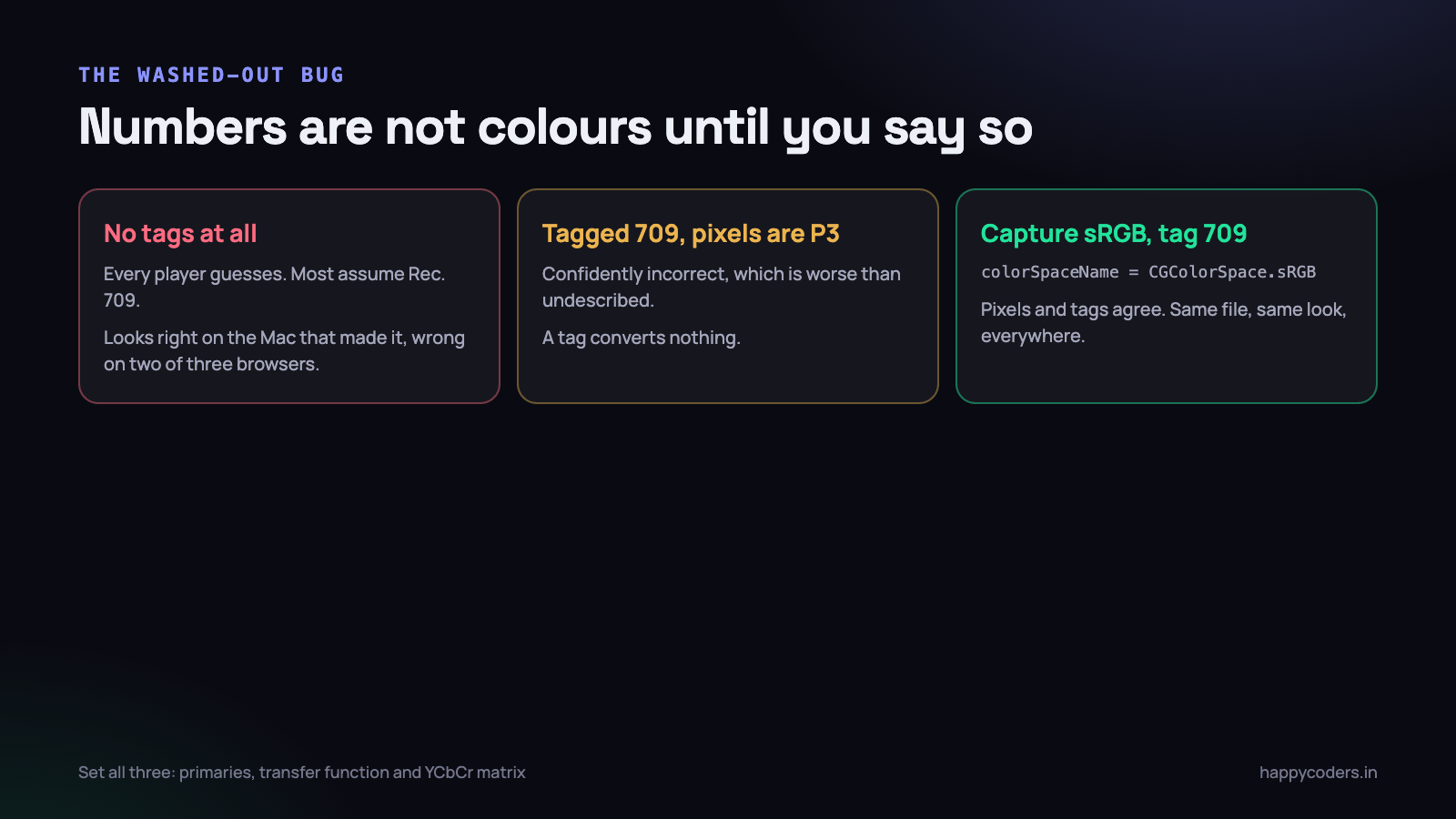
Video does not store colours. It stores numbers, plus a set of tags saying what those numbers mean: which primaries define red, green and blue, which transfer function maps the values to light, and which matrix converts between RGB and the YCbCr the codec actually encodes. If those tags are missing, every player guesses, and they do not all guess the same thing.
Most players assume Rec. 709 when nothing is specified, because that is the safe assumption for HD video. On a modern Mac, though, screen capture hands you pixels in the display’s colour space, which is very often Display P3. P3 numbers interpreted as 709 look over-saturated. The correction some players apply then makes them look flat. Nobody is malfunctioning; the file simply never said.
let videoSettings: [String: Any] = [
    AVVideoCodecKey: AVVideoCodecType.h264,
    AVVideoWidthKey: outputWidth,
    AVVideoHeightKey: outputHeight,
    AVVideoColorPropertiesKey: [
        AVVideoColorPrimariesKey:
            AVVideoColorPrimaries_ITU_R_709_2,
        AVVideoTransferFunctionKey:
            AVVideoTransferFunction_ITU_R_709_2,
        AVVideoYCbCrMatrixKey:
            AVVideoYCbCrMatrix_ITU_R_709_2,
    ],
    AVVideoCompressionPropertiesKey: [
        AVVideoAverageBitRateKey: bitrate,
        AVVideoMaxKeyFrameIntervalKey: fps * 2,
        AVVideoProfileLevelKey:
            AVVideoProfileLevelH264HighAutoLevel,
        AVVideoAllowFrameReorderingKey: false,
    ],
]
The tag is only half of it, and this is the part that is easy to get wrong. Writing 709 tags does not convert anything. If the pixels arriving from capture are P3 and you label them 709, you have made the file confidently incorrect, which is worse than leaving it undescribed.
The fix is to make the two agree. Ask the capture system for the colour space you intend to tag, so no conversion is needed and no lie is told. In ScreenCaptureKit that is colorSpaceName on the stream configuration; set it to CGColorSpace.sRGB and tag the output 709, and the file looks the same everywhere. If you would rather keep the wider gamut, capture P3 and tag P3 — also correct, and slightly riskier with older players.
We chose sRGB and 709 for everything a client will open, and it ended a whole class of “the colours look different on my screen” messages that we had previously spent time trying to reproduce on monitors that were not the problem.
Profile, level, and the phone somebody still uses
H.264 is not one thing. A profile is a set of coding tools the encoder is allowed to use; a level caps resolution, frame rate and bitrate. A decoder advertises which profile and level it supports, and anything beyond it is refused — usually silently, as a black picture with working audio.
- Baseline is the widest support and the worst compression. It exists for hardware that stopped being made a decade ago.
- Main adds B-frames and is safe on essentially anything since about 2012.
- High adds 8×8 transforms and custom quantisation matrices, compresses screen content noticeably better, and is what every modern device wants.
- Level is separate from all of that. 4.0 covers 1080p30, 4.2 covers 1080p60, 5.1 covers 4K30, 5.2 covers 4K60. A device can support High profile and still refuse your file on level alone.
The practical shape of this is that High profile is right for almost everybody, and the failures you see in the wild are usually about level, not profile — a 4K60 recording handed to a machine that tops out at 4.2. Using AVVideoProfileLevelH264HighAutoLevel lets VideoToolbox pick the lowest level that fits your actual resolution and frame rate, which is exactly the behaviour you want and takes the decision away from you.
If you know a file is going to an unknown Windows estate or an old Android handset, Main profile with a hard level cap is the conservative choice, and on screen content at a decent bitrate you will not see the difference. We expose this as a single compatibility toggle rather than two dropdowns, because nobody outside video engineering should have to learn what a profile is.
Audio, and what you are allowed to put next to the video
The container has opinions about audio too, and they are narrower than most people expect. AAC-LC at 48 kHz, stereo or mono, is the only audio anybody should be writing into an MP4 that leaves the building. It is what browsers decode, it is what phones decode, and it is what every upload pipeline expects.
- PCM in an MP4 is technically expressible and practically a bad idea. Players that support it are a minority. Put uncompressed audio in a MOV or a WAV.
- Mismatched sample rates between the microphone and system audio need resampling before the writer, not inside it. A writer that quietly accepts 44.1 and 48 on alternate segments produces drift that shows up forty minutes in.
- 128 kbps is plenty for speech. 192 for anything musical. Above that you are spending bytes nobody will hear over a laptop speaker.
- One audio track, not three. Microphone and system audio should be mixed before writing unless you are producing an editing source; most players expose only the first track, and your client will hear half the recording.
Verifying a file instead of hoping
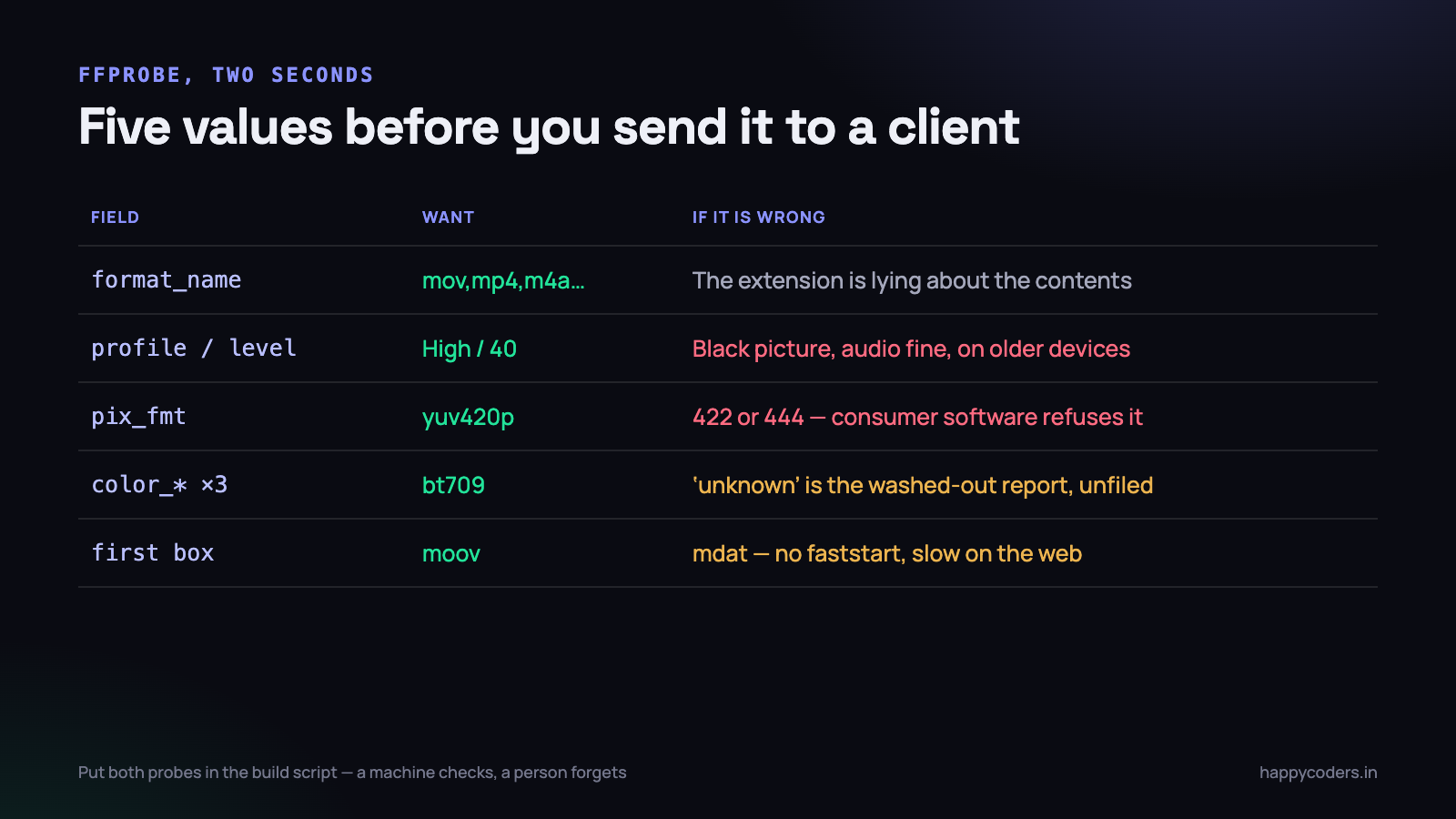
Everything above is checkable in about two seconds with ffprobe, and there is no excuse for shipping a recorder without doing it. This is the command we keep in a script and run over the output of every test recording.
ffprobe -v error -hide_banner
  -show_entries format=format_name,duration,size,bit_rate
  -show_entries stream=codec_name,profile,level,width,height,
pix_fmt,color_primaries,color_transfer,color_space,
r_frame_rate,sample_rate,channels
  -of default=noprint_wrappers=1 recording.mp4
What we read from the output, in order:
- format_name should say
mov,mp4,m4a,3gp,3g2,mj2. If it says something else, the extension is lying about the contents. - profile and level for the video stream.
Highand40means High profile, level 4.0. - pix_fmt should be
yuv420p. If it saysyuv422poryuv444p, a lot of consumer software will not touch it. - color_primaries, color_transfer, color_space should all say
bt709, notunknown. Threeunknownvalues is the washed-out bug waiting to be reported. - r_frame_rate should be close to what you asked for. A recording that claims 60 and measures 41 is a different article entirely — we wrote about where frames actually get dropped.
Faststart is not in that output, because it is about byte order rather than metadata. The cheapest check is to ask which box appears first:
ffmpeg -v trace -i recording.mp4 2>&1
  | grep -m 2 -o -e "type:'mdat'" -e "type:'moov'" | head -1

# prints type:'moov'  -> faststart, good
# prints type:'mdat'  -> index is at the end
Both commands went into our build script. A recording produced by the test harness is probed automatically, and the build fails if the profile, the pixel format, the colour tags or the box order are not what we intended. That check has caught two regressions that a human reviewer would not have noticed, because in both cases the video looked perfectly fine on the machine that made it.
The things we got wrong, in order
- Setting
shouldOptimizeForNetworkUseafterstartWriting. No error, no warning, no faststart. We believed it was on for about three months. - Writing no colour tags at all. Everything looked right on our own displays, because our displays were the ones the pixels came from.
- Defaulting to MOV because it was easier. It is easier until the first client with a Windows laptop and no admin rights.
- Shipping High profile at 4K60 with no level cap. Fine on every machine we owned, black on a decent number that we did not.
- Treating
finishWritingas instantaneous. The app could be quit during the rearrange, and the resulting file was unopenable despite containing every frame.
The pattern in all five is the same, and it is the reason container problems are so persistent: the developer’s machine is the single least representative environment for testing a video file. It has the codecs, the colour profile, the software and the disk that produced the file in the first place. Of course it plays.
What to do on Monday morning
If you write video files from an application, this is an hour of work and it removes a support category.
- Take the last file your software produced and run the ffprobe command above on it. Read the four colour fields first.
- Check the box order with the ffmpeg trace one-liner. If it prints
mdat, find where your writer is configured and set the faststart flag before writing starts. - Decide, once, which container leaves your application, and make MOV a deliberate export rather than a default.
- Put both probes into your build or test script so the answer is checked by a machine rather than remembered by a person.
- Test the output somewhere that is not your Mac. A Windows laptop, an Android phone, and a plain
<video>tag in Chrome cover nearly all of it.
The checklist we now use before a file is handed to a client fits in one line: H.264 High in MP4, yuv420p, 709 tags on all three fields, AAC 48 kHz, and moov at the front. Five properties. A file with all five has never come back.