Idle Detection Without a Keylogger: What the OS Will Actually Tell You
Idle Detection Without a Keylogger: What the OS Will Actually Tell You
A time tracker has to answer one awkward question: the timer is running, but is anybody there? Without an answer, a forgotten timer produces a nineteen-hour day and the data becomes worthless. With the wrong answer — a hook that records every keystroke — you have built a keylogger, and you deserve the reception you get.
The good news is that all three desktop platforms will tell you how long it has been since the user did anything, without telling you what they did. This is how each one works, and why the code is the easy half.
The distinction that matters
There are two very different things a program can do, and they are frequently confused in conversations about tracking software.
- Reading input. Installing a hook that receives keystrokes and mouse events, and therefore can record what was typed. This requires elevated permission on every modern OS, and it should.
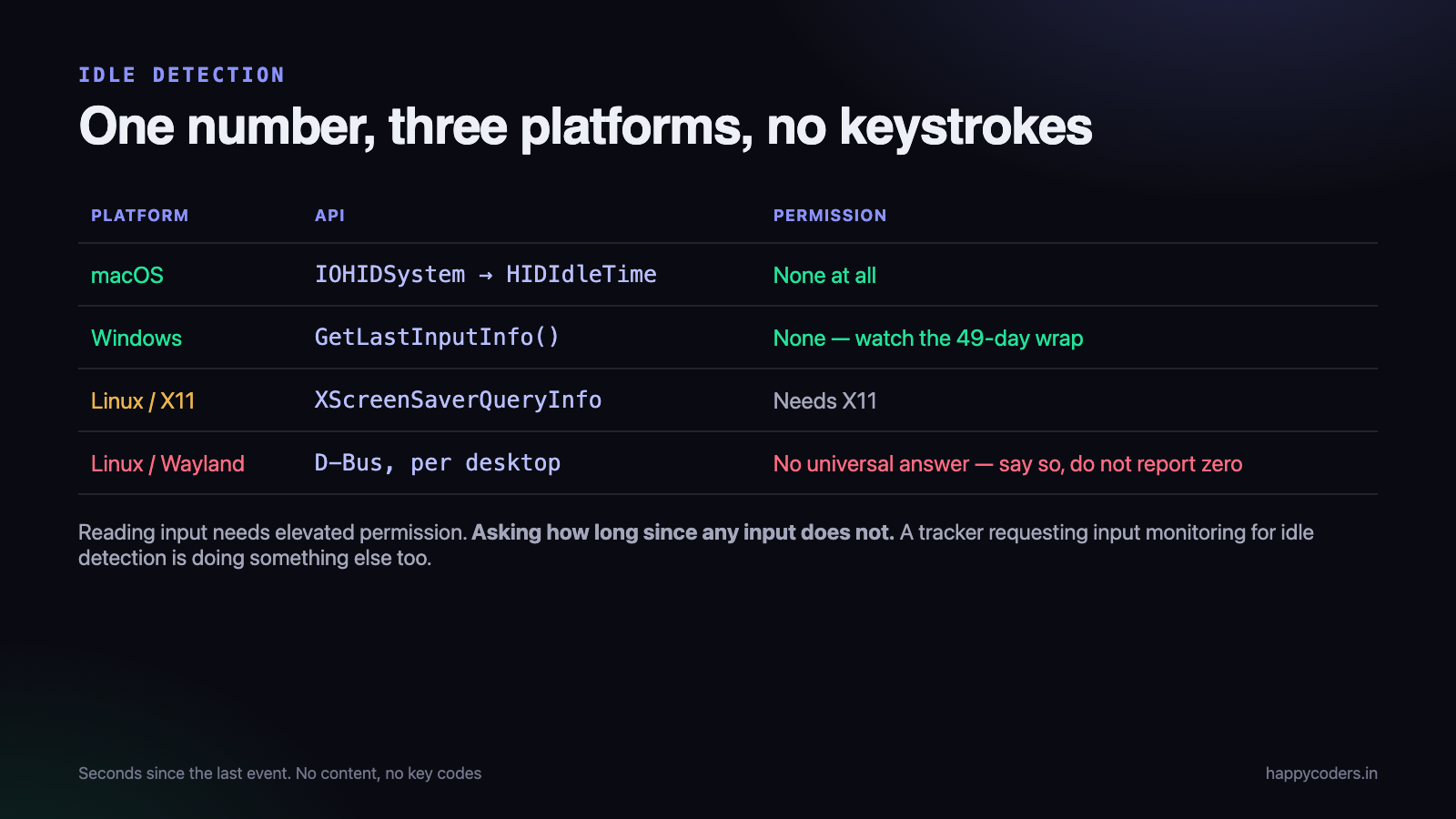
- Asking how long since any input. Requesting a single number from the operating system: seconds since the last event of any kind. No content, no key codes, no coordinates.
The second is what idle detection needs. It is a supported, documented API on all three platforms, and on macOS it needs no special permission at all. Any tracker asking for input-monitoring permission in order to detect idleness is either badly implemented or doing something else as well.
This is worth saying out loud in your own documentation, because users cannot tell the two apart from the outside, and the assumption is always the worse one.
macOS
The IOKit HID system exposes the time since the last event on the system, as a single value.
import IOKit

func systemIdleSeconds() -> TimeInterval {
    var iterator: io_iterator_t = 0
    defer { IOObjectRelease(iterator) }

    guard IOServiceGetMatchingServices(
            kIOMainPortDefault,
            IOServiceMatching("IOHIDSystem"),
            &iterator) == KERN_SUCCESS else { return 0 }

    let entry = IOIteratorNext(iterator)
    defer { IOObjectRelease(entry) }
    guard entry != 0 else { return 0 }

    var props: Unmanaged<CFMutableDictionary>?
    guard IORegistryEntryCreateCFProperties(entry, &props, kCFAllocatorDefault, 0)
            == KERN_SUCCESS,
          let dict = props?.takeRetainedValue() as? [String: Any],
          let nanos = dict["HIDIdleTime"] as? UInt64 else { return 0 }

    return TimeInterval(nanos) / 1_000_000_000
}
No entitlement, no permission prompt, no accessibility access. The number covers keyboard and mouse across the whole system, not just your application.
One caveat worth knowing: some HID devices reset this counter on their own, including certain wireless mice that report movement while sitting still. If you see idle time that refuses to climb on a particular machine, that is usually why, and it is not your bug — but you should degrade gracefully rather than concluding the user is always active.
Windows
A single documented call, and the simplest of the three.
[StructLayout(LayoutKind.Sequential)]
struct LASTINPUTINFO { public uint cbSize; public uint dwTime; }

[DllImport("user32.dll")]
static extern bool GetLastInputInfo(ref LASTINPUTINFO plii);

public static TimeSpan SystemIdle()
{
    var info = new LASTINPUTINFO();
    info.cbSize = (uint)Marshal.SizeOf(info);
    if (!GetLastInputInfo(ref info)) return TimeSpan.Zero;

    // both are tick counts since boot, and both wrap after ~49 days
    uint idleMs = unchecked((uint)Environment.TickCount - info.dwTime);
    return TimeSpan.FromMilliseconds(idleMs);
}
The unchecked is not decoration. Both values wrap around after about forty-nine days of uptime, and subtracting them without allowing for that produces an idle time of several weeks on a machine that has simply been left on. Users with long-running desktops hit this, and the bug report is baffling until you know.
Note also that this reports input to the current session. In a remote desktop or a locked workstation the answer is not always what you expect, and it is worth testing if your users work that way.
Linux, where it depends
The hardest of the three, because there is no single answer. On X11 the screensaver extension provides it:
#include <X11/extensions/scrnsaver.h>

long idle_seconds(Display *dpy) {
    XScreenSaverInfo *info = XScreenSaverAllocInfo();
    XScreenSaverQueryInfo(dpy, DefaultRootWindow(dpy), info);
    long ms = info->idle;
    XFree(info);
    return ms / 1000;
}
On Wayland this does not exist, deliberately — a Wayland client is not allowed to know about input it did not receive. The available routes are the desktop environment’s own interface over D-Bus, which differs between GNOME and KDE, or the org.freedesktop.ScreenSaver interface where it is implemented.
The practical approach we settled on is a ladder: try the D-Bus interfaces, fall back to the X11 extension where XWayland is present, and if neither works, say so rather than reporting zero. A tracker that silently reports “never idle” on a whole desktop environment is worse than one that admits it cannot tell.
The hard part is the policy
Having the number is straightforward. Deciding what to do with it is where trackers go wrong, and every one of these is a product decision rather than an engineering one.
How long is idle?
Too short and you are stopping the timer while somebody reads a document or thinks. Too long and the forgotten-timer problem is unsolved.
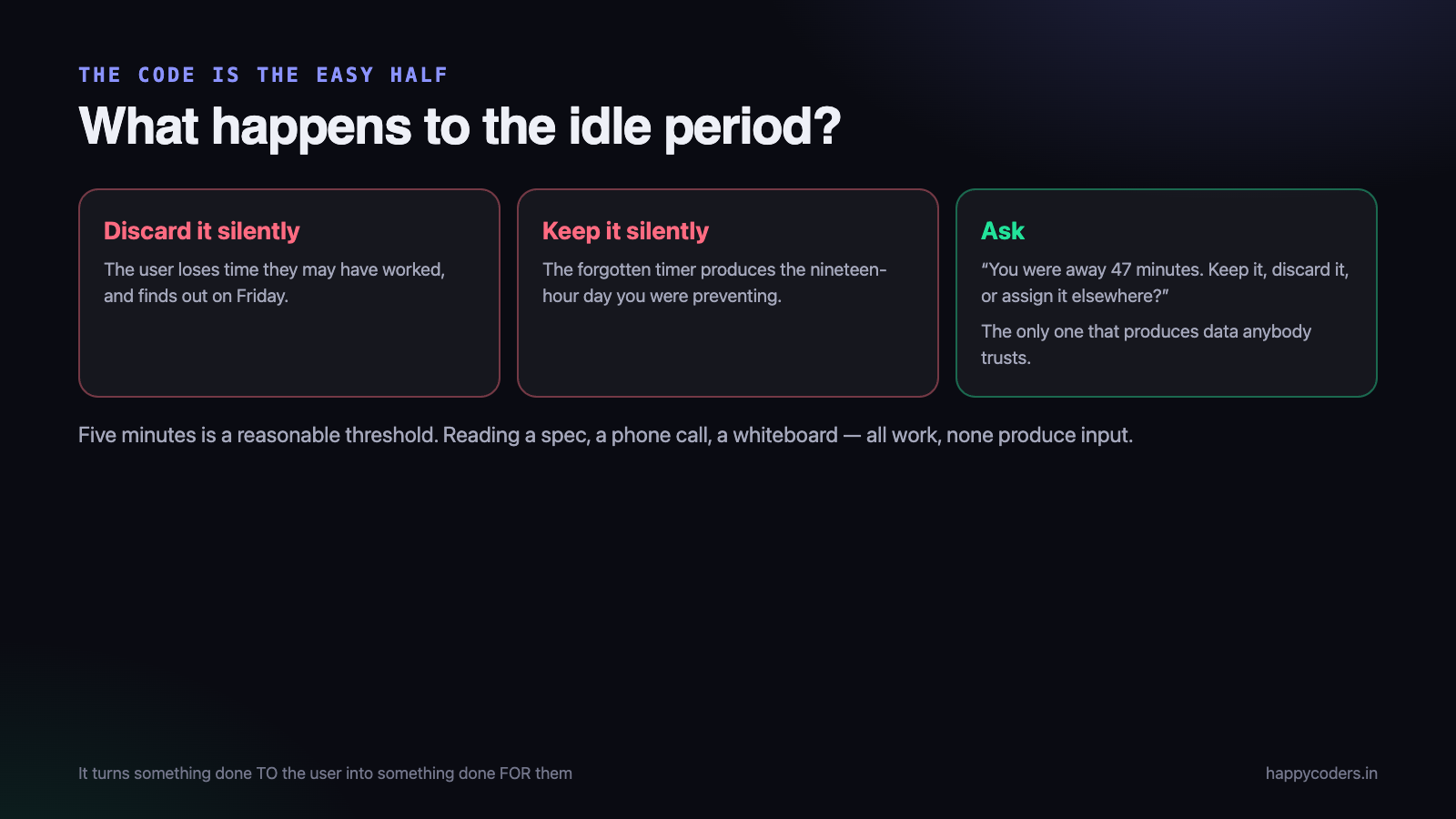
Five minutes is a reasonable default and it should be configurable per organisation. Reading a long specification, a phone call, a whiteboard conversation — all of these are work, and none produce input.
What happens to the idle period?
Three options, and only one of them is defensible:
- Discard it silently. The user loses time they may genuinely have worked, and finds out at the end of the week. This is the fastest way to make people distrust a tracker.
- Keep it silently. Now a forgotten timer produces the nineteen-hour day you were trying to prevent.
- Ask. When the user comes back, tell them what happened and let them decide. “You were away for 47 minutes. Keep that time, discard it, or assign it to something else?”
The third takes more work and is the only one that produces data anybody trusts. It also converts idle detection from something done to the user into something done for them — and that framing is most of the difference in how the feature is received.
Idle is not the same as away
Worth separating, because the correct response differs:
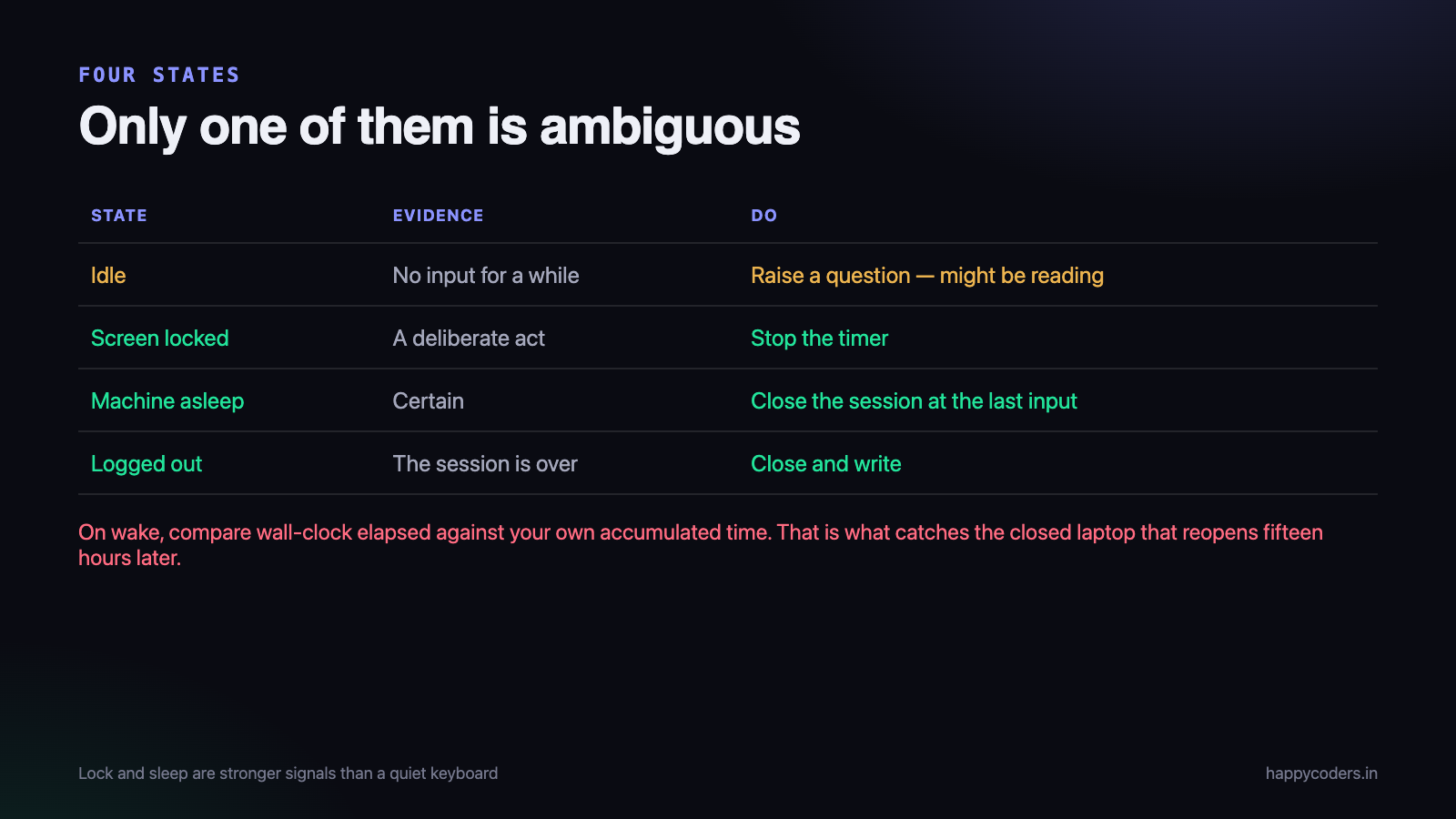
- Idle — no input for a while. Might be reading, might be in a meeting, might have left.
- Screen locked — a deliberate act. Much stronger evidence that the person has gone.
- Machine asleep — certain. No ambiguity at all.
- Logged out or shut down — the session is over.
All three platforms provide notifications for lock, sleep and wake. Using them makes the feature considerably better than idle time alone: a locked screen can stop the timer immediately, while a quiet keyboard only raises a question.
Polling, and doing it cheaply
All three APIs are pull rather than push: there is no notification when the user goes idle, only a number you can ask for. So the tracker polls, and how it polls matters more than it sounds on a laptop running on battery.
Three things keep the cost negligible:
- Poll slowly. Once every fifteen or thirty seconds is plenty for a five-minute threshold. Polling every second is a hundred times the wakeups for no additional accuracy in the decision you are making.
- Use a coalescing timer. Every platform has a way to tell the scheduler that a timer does not need to fire at a precise moment, so it can be batched with other work rather than waking the CPU on its own. On macOS that is a tolerance on the timer; the saving on battery is real and free.
- Stop polling when the timer is not running. Obvious, and frequently missed — a tracker that polls all day whether or not anybody is tracking is the sort of thing that gets it uninstalled after a battery complaint.
Once idle is detected, it is reasonable to poll faster for a short period to catch the exact moment of return, and then settle back. The user coming back is the only moment where a few seconds of precision has any value at all.
Getting the boundary right
When the user returns after being away, there is a question that is easy to get wrong: when did the idle period actually start?
It did not start when your poll noticed. It started at the moment of the last input, which is exactly what the API gives you. If you poll at 14:00 and get an idle time of 312 seconds, the idle period began at 13:54:48 — not at 14:00, and not at your previous poll.
let idle = systemIdleSeconds()
if idle >= threshold, currentSession != nil {
    // the gap began at the last input, not now
    let idleStart = Date().addingTimeInterval(-idle)
    pendingIdleGap = idleStart ..< Date()
}
Getting this wrong by a polling interval each time sounds harmless. Over a week of short breaks it is a visible and unexplainable discrepancy between what the tracker says and what the person remembers, and those discrepancies are what destroy confidence in the numbers.
What to do while you are waiting to ask
The “ask the user” policy has a subtlety: the user is not there to be asked. The tracker notices at 13:59 that nobody has typed since 13:54, and the person returns at 15:20. What is the timer doing for that hour and twenty minutes?
The approach that works is to keep recording, and hold the idle period as a pending, marked gap rather than deciding anything. When the user returns, the dialog covers the whole stretch. If the machine sleeps or the application quits before they return, the session is closed at the last input — the conservative answer, because you have no evidence of work after that point.
Two rules keep it honest. The pending gap never silently becomes billable time, and it never silently disappears either. Anything unresolved when a day is closed should be flagged in the timesheet as something the person needs to look at, rather than quietly resolved in either direction.
The sleep and wake problem
This causes real bugs, and it is the part most likely to be wrong in a tracker that is otherwise fine.
A laptop is closed at 18:00 with the timer running and reopened at 09:00 the next morning. A naive implementation sees a session that started yesterday and is still open, and records fifteen hours.
Two things prevent it:
- Subscribe to sleep and wake notifications and close the session on sleep, so the record is written with the correct end time before anything is suspended.
- On wake, compare wall-clock elapsed time against your own accumulated time. If the gap is large, the machine was suspended and the difference is not work, whatever your timers believe.
The second is the safety net, and it is what catches the cases where a notification does not arrive — a forced shutdown, a battery failure, a crash. It is worth having both.
Testing it without waiting five minutes
The obvious problem with testing idle detection is that it takes as long as the threshold. Two things make it bearable and are worth building early.
Make the threshold injectable so tests can set it to two seconds. If it is a constant compiled into the detector, every test run costs five minutes and nobody writes the tests.
Put the clock behind an interface too. Then the sleep-and-wake case — the one that produces the fifteen-hour day — is testable in milliseconds: advance the fake clock by fifteen hours, deliver a wake notification, and assert that the session closed at the last input rather than at the wake. That bug is otherwise only reproducible by closing a laptop overnight, which is why it ships.
Say exactly what you collect
This is the part that decides whether a team accepts the feature, and it costs nothing but honesty.
Our own settings screen says, in plain words, that the application asks the operating system how many seconds have passed since the last keyboard or mouse activity; that it does not receive, record or transmit what was typed or where the mouse moved; and that the number never leaves the machine — only the resulting start and end times do.
Every sentence there is checkable by anybody who wants to look, which is the point. A vague reassurance invites the assumption that there is something to hide, and in this product category that assumption is the default.
It is also the sentence support quotes back to a worried employee, which means it has to be true in the narrow sense as well as the broad one. Write it with the person who implemented the feature in the room.
What we ended up with
- The platform idle API on each OS, with a documented fallback ladder on Linux.
- A five-minute default threshold, configurable per organisation.
- Lock, sleep and wake notifications treated as stronger signals than idle time.
- A wall-clock sanity check on wake, for the notifications that never arrive.
- The user is always asked what to do with an idle period, never told.
- A plain-English description of exactly what is collected, in the app rather than in a policy document.
The engineering here is perhaps two hundred lines across three platforms. The decisions above are what determine whether people leave the feature switched on, and they are not engineering decisions at all.
Related: measuring active time without spying on people, and screenshot monitoring that survives a conversation with HR.